Set Global Variable Step
The Set Global Variable Step lets you change the value of a global variable in your process. Use it to update shared data that other parts of your automation might need.
How to Use the Set Global Variable Step
Use this step to change an existing global variable.
Step 1: Add the Step to Your Process
- Drag and drop the Set Global Variable Step into your process flow.
- Click on the step to open its properties.
Step 2: Configure the Variable
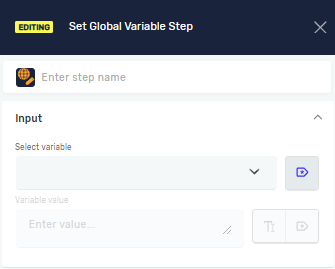
- In the step properties, pick the Global variable you want to edit from the dropdown list.
- Type in the new Variable value. This can be a set value or another existing variable.
Important: The global variable you choose must be able to change and have a process scope.
Parameters Explained
Step Name (Optional)
- A custom name for this step in your process.
- Example: "Update User Status"
Global variable (Required)
- The name of the global variable you want to change.
- This variable must be set up to be changeable and have a process scope.
- Example:
userStatus
Variable value (Required)
- The new value you want to give to the global variable.
- You can type in a set value (e.g., "Active") or choose another variable whose value will be used.
- Example:
"LoggedIn"orcurrentStatusVariable
Related Articles
Need Help?
Can't find what you're looking for? Join the Robotiq Community to get help from other users and the Robotiq team.