Write Text To File Step
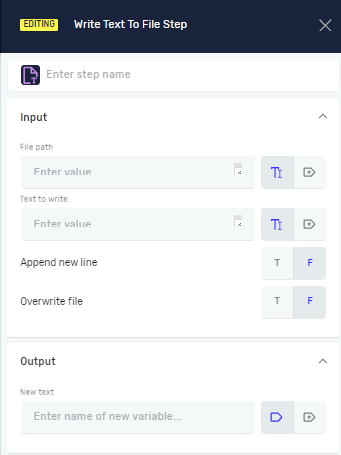
The Write Text To File step writes text to a .txt or .css file. You can use it to create new files or update existing ones with specific content.
How to Use Write Text To File
Use this step to save data, logs, or settings to a text file during your automation process.
Step 1: Add the Write Text To File Step
- Drag and drop the Write Text To File step into your process workflow.
- (Optional) In the Step name field, type a custom name for this step. This helps you find the step in your process.
Step 2: Configure Input Parameters
Set these parameters to tell the step what text to write and where to save it.
Parameters Explained
File Path (Required)
- This is the full path to the file.
- Example:
C:\Logs\MyLog.txtor a variable that holds the path. - Use this to tell the step where to create or find the file.
Text to Write (Required)
- This is the text you want to write to the file, either as a string or a variable.
- Example:
"Process completed successfully."or a variable likemyOutputText. - This is the content that will be added to your file.
Append New Line (Required)
- This setting decides if the
Text to Writestarts on a new line in the file. - Set to
Trueto add the text on a new line. - Set to
Falseto add the text right after the existing content on the same line.
Overwrite File (Required)
- This controls how the step deals with files that already exist.
- T (True): The step replaces the entire file with the new text.
- F (False): The step adds the new text to the end of the file. This is the default setting.
Related Articles
Need Help?
Can't find what you're looking for? Join the Robotiq Community to get help from other users and the Robotiq team.