List Comparison Step
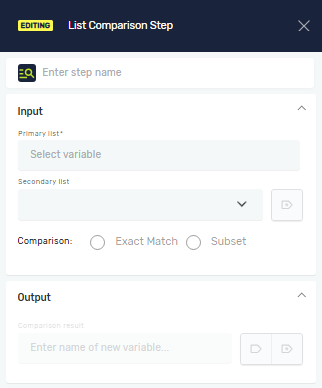
The List Comparison step lets you compare two lists in your automation. You can check if lists are the same or if one list has everything from another. This helps you confirm data or control how your process runs based on what's in the lists.
How to Use the List Comparison Step
Use this step to compare two list variables you've already made.
Step 1: Add the List Comparison Step
- Drag the List Comparison step into your process workflow.
- (Optional) Give it a Step Name to label it in the editor.
Step 2: Set Up Input Parameters
- Pick an existing list variable for First list variable.
- Pick an existing list variable for Second list variable.
- Choose how to compare them with Comparison type:
- Exact match: Checks if both lists are exactly alike.
- Subset: Checks if the first list includes every item from the second list.
- If your lists have text, you'll see the Ignore case toggle:
- Set to True (this is the default) to ignore if letters are uppercase or lowercase when comparing text (for example, "Apple" matches "apple").
- Set to False to make the comparison care about letter casing.
Important: The Ignore case option only shows up if your chosen list variables are ListOfString (lists of text). It won't appear for ListOfIntegers (lists of numbers) or other types.
Step 3: Use the Comparison Result
The step gives you a true/false variable that shows the comparison result.
- Save the output to a Comparison result variable.
- Use this true/false variable in later steps, like a Switch Step, to guide your process.
Parameters Explained
Step Name (Optional)
- A custom name for this step in your process.
- Example:
Compare Product IDs - Use it to make your process easier to understand.
First list variable (Required)
- The first list you want to compare.
- Example:
myProductList - This needs to be a list variable you've already created.
Second list variable (Required)
- The second list you want to compare.
- Example:
newProductList - This needs to be a list variable you've already created.
Ignore case (Required)
- Decides if text comparisons care about uppercase or lowercase letters.
- Example:
TrueorFalse - Set to
Trueto treat "apple" and "Apple" as the same. This setting is only available forListOfStringvariables.
Comparison type (Required)
- Sets how the lists are compared.
- Options:
Exact match,Subset - Choose
Exact matchto see if lists are identical. ChooseSubsetto see if the first list contains everything in the second.
Comparison result (Required)
- A true/false variable that holds the comparison's outcome.
- Example:
areListsEqual Trueif the comparison rules are met,Falseif not.
Related Articles
- Define Variable Step - Learn how to make new variables, including list variables.
- Set Variable Value Step - Understand how to change what's in your variables.
- Switch Step - Use the comparison result to make your process do different things based on conditions.
Need Help?
Can't find what you're looking for? Join the Robotiq Community to get help from other users and the Robotiq team.