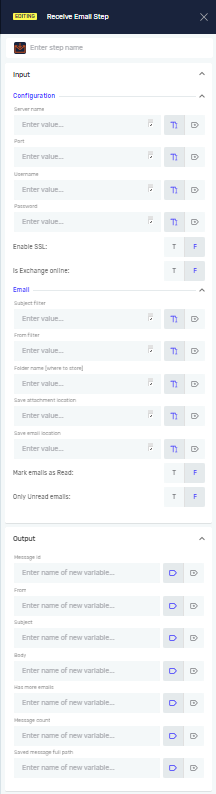
Receive Email Step
The Receive Email Step downloads emails from a specific mailbox. You can use it to automate tasks that start when you get an email, like processing attachments or pulling information from the email itself.
How to Use the Receive Email Step
Add this step to your process to connect to an email server and get messages.
Configure Email Server Details
- Server Name: Type in the SMTP client server name.
- Port: Give the port number for the SMTP client.
- Username: Type in the username for the email account.
- Password: Type in the password for the email account.
- Enable SSL: Choose
T(True) to use SSL encryption, orF(False) if SSL isn't needed. - Is Exchange online: Choose
T(True) if you're connecting to an Exchange Online account, orF(False) otherwise.
Set Email Filters and Actions
- Subject filter: Type text to filter emails by their subject line. Only emails with this text in the subject will download.
- From filter: Type an email address to filter emails by sender. Only emails from this address will download.
- Folder Name (Where to Store): Give a string variable that holds the full path to the folder where downloaded emails will go.
- Save attachment location: (Optional) Type an existing or new variable name to save the location where attachments are stored.
- Save email Location: Type an existing or new variable name to save the full path of the saved email.
- Mark email as Read: Choose
T(True) to mark downloaded emails as read, orF(False) to leave them unread. - Only Unread Emails: Choose
T(True) to download only unread emails, orF(False) to download all emails (read and unread).
Parameters Explained
Input Parameters
Step name (Optional)
- A custom name for this process step. This helps you find the step in the Process Editor.
Server Name (Required)
- The name of the SMTP client server.
- Example:
smtp.example.com
Port (Required)
- The port number the SMTP client uses.
- Example:
993(for IMAP SSL) or587(for SMTP TLS)
Username (Required)
- The username for the email account you want to get into.
- Example:
your.email@example.com
Password (Required)
- The password for the email account.
Enable SSL (Required)
- Says if the Secure Sockets Layer (SSL) protocol is used for a secure connection.
T: Use SSL.F: Don't use SSL (default).
Is Exchange online (Required)
- Says if the email server is Exchange Online.
T: It is Exchange Online.F: It is not Exchange Online (default).
Subject filter (Required)
- Text to look for in the email subject line.
- Example:
[Robotiq Order]
From filter (Required)
- An email address to match the sender.
- Example:
noreply@robotiq.ai
Folder Name (Where to Store) (Required)
- A string variable holding the full path where the downloaded emails will be saved.
- Example:
C:\Robotiq\DownloadedEmails
Save attachment location (Optional)
- An existing or new variable name to save the path where attachments are stored.
Save email Location (Required)
- An existing or new variable name to save the full path of the saved email file.
Mark email as Read (Required)
- Controls whether downloaded emails are marked as read in the mailbox.
T: Mark as read.F: Don't mark as read (default).
Only Unread Emails (Required)
- Controls whether only unread emails download.
T: Download only unread emails.F: Download all emails (default).
Output Parameters
Message ID (Required)
- Saves the unique ID of the downloaded email to a new or existing string variable.
From (Required)
- Saves the sender's email address to a new or existing string variable.
Subject (Required)
- Saves the email's subject line to a new or existing string variable.
Body (Required)
- Saves the email's body content to a new or existing string variable.
Has more emails (Required)
- Saves a true/false value saying if there are more emails to process, to a new or existing string variable.
Message count (Required)
- Saves the total number of messages found to a new or existing string variable.
Saved message full path (Required)
- Saves the full file path of the downloaded email to a new or existing string variable.
Related Articles
Need Help?
Can't find what you're looking for? Join the Robotiq Community to get help from other users and the Robotiq team.