To Upper Text Step
The To Upper Text Step changes all lowercase letters in a text variable to uppercase. Use this step to make text formatting the same across your automated processes.
How to Use the To Upper Text Step
Add this step to your process to change text to all uppercase.
Step 1: Add the To Upper Text Step
- Open your process in the Robotiq.ai Process Editor.
- Drag and drop the To Upper Text Step into your workflow.
Step 2: Configure the Step
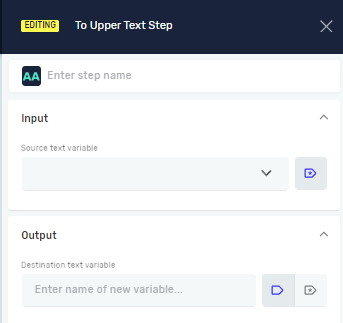
- Click on the To Upper Text Step to open its properties.
- (Optional) In the Step name field, enter a custom name for this step. This helps you tell it apart in your process.
Parameters Explained
Step name (Optional)
- A custom name for the process step.
- Example:
Convert_Product_Code_to_Uppercase - Use this to make your process steps easier to understand.
Source text variable (Required)
- The name of an existing string variable that holds the text you want to change.
- Example:
productName - The step will read the value from this variable.
Destination Text variable (Required)
- The name of a new or existing string variable where the uppercase text will be saved.
- Example:
uppercaseProductName - If the variable does not exist, the system creates it.
Examples of Use
- Making data consistent: Change user input or text you've pulled out to a consistent uppercase format before saving it.
- Comparing text: Make sure comparisons ignore case by changing both strings to uppercase first.
Related Articles
- To Lower Text Step - Change text to all lowercase letters.
- Set Variable Value Step - Change or set the value of an existing variable.
- Script Step - Use custom scripts for more complex text changes.
Need Help?
Can't find what you're looking for? Join the Robotiq Community to get help from other users and the Robotiq team.