File Exists Step
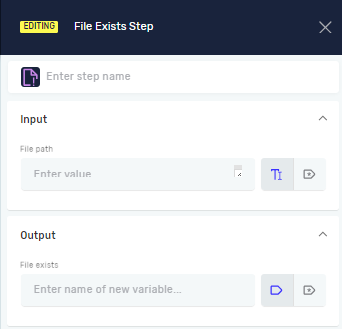
The File Exists step checks if a file is in a certain spot. You use it to make sure a file is there before your automation tries to use it. This helps stop your workflows from running into errors.
How to Use the File Exists Step
Step 1: Add the File Exists Step
- Open your process in the Process Editor.
- Drag the "File Exists" step from the toolbox into your workflow.
Step 2: Set the File Path
- Click on the "File Exists" step to open its settings.
- In the File path field, type the full path to the file you want to check.
- You can type a direct path (e.g.,
C:\Documents\report.xlsx). - You can also use a string variable that already holds the file path.
- You can type a direct path (e.g.,
Step 3: Set the Output Variable
- In the File Exists field, type the name of a new or existing true/false variable.
- This variable will show the result of the check:
Trueif the file is there.Falseif the file is not there.
Example: You might use a Switch Step after this step to do different things depending on if the file exists.
Parameters Explained
Step name (Optional)
- A custom name for this step in your process.
- This helps you find the step in the Process Editor.
File path (Required)
- The full path to the file you want to check.
- Example:
C:\Data\my_document.pdfor a variable like{{filePathVariable}}.
File Exists (Required)
- The name of the true/false variable that will hold the result.
- Example:
isFilePresent - If the file exists,
isFilePresentwill beTrue. If not, it will beFalse.
Related Articles
Need Help?
Can't find what you're looking for? Join the Robotiq Community to get help from other users and the Robotiq team.