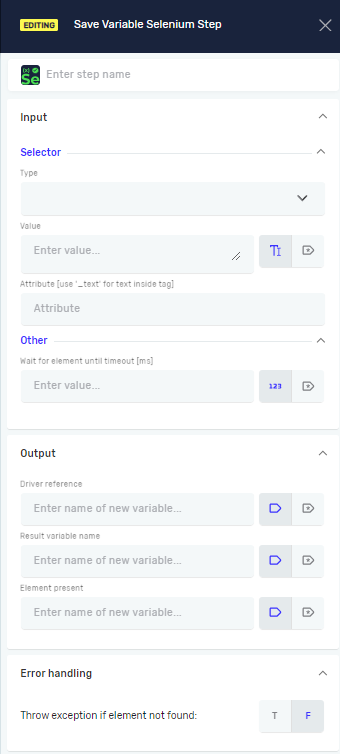
Save Variable Selenium Step
The Get Text activity pulls text from a UI element you pick. You can use it to read stuff from apps, web pages, or documents.
How to Use Get Text
Use the Get Text activity to grab visible text from a UI element.
Step 1: Add the Get Text Activity
- Drag the
Get Textactivity into your workflow. - Put it where you want to pull text.
Step 2: Pick the Target Element
- Click Indicate on screen in the activity's settings.
- Move your mouse over the UI element you want to get text from.
- Click the element to select it.
Step 3: Save the Text You Pulled
- In the
Get Textactivity's settings, look for the Output section. - In the Text field, make a new variable to hold the text you pulled. You can do this by typing a variable name and pressing
Ctrl + K.
What the Parameters Mean
Selector (Required)
- This tells the activity which UI element to target.
- The selector is made automatically when you pick something on screen.
- You can change the selector yourself if you need to be more exact.
Text (Required)
- This saves the text you pulled as a string variable.
- This variable holds whatever was read from the UI element.
Related Articles
- How to Use the
ClickActivity - Working with Variables in Robotiq.ai
Need Help?
Can't find what you need? Join the Robotiq Community to get help from other users and the Robotiq team.