
Increase Decrease Variable Step
The Increase/Decrease Variable step changes the value of an existing number variable. You can add to it or subtract from it. This step then stores the new value in the same variable or a different one.
Use this step to manage counters, update quantities, or adjust numbers in your automation processes.
How to Use the Increase/Decrease Variable Step
Add this step to your process to change a number variable.
Step 1: Add the Step to Your Process
- Open your process in the Robotiq.ai editor.
- Drag and drop the "Increase/Decrease Variable" step into your workflow.
Step 2: Set Up the Step
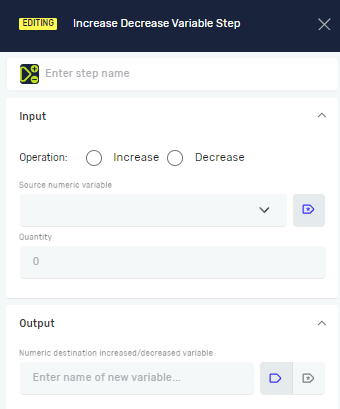
- Operation: Choose "Increase" to add the quantity or "Decrease" to subtract it.
- Source numeric variable: Pick the existing integer variable you want to change.
- Quantity: Type in the integer number you want to add or subtract.
- Numeric destination increased/decreased variable: Type the name of the variable where the new value will go. You can use the same variable as the source or make a new one.
Example: If your Counter variable is 5, and you set "Operation" to "Increase" and "Quantity" to 1, the Counter variable will become 6.
Parameters Explained
Step name (Optional)
- A custom name for this step in the process editor.
Operation (Required)
- Says whether to add or subtract the quantity.
- Options:
Increase,Decrease - When to use it: Choose
Increaseto add to the variable, orDecreaseto subtract from it.
Source numeric variable (Required)
- The name of the existing integer number variable whose value you want to change.
- Example:
myCounter - When to use it: Always say which variable you are changing.
Quantity (Required)
- The whole number to add or subtract from the source variable.
- Example:
1,10,-5 - When to use it: Say how much the variable should change.
Numeric destination increased/decreased variable (Required)
- The name of the variable that will hold the final calculated value.
- Example:
updatedCounterormyCounter(if updating the same variable) - When to use it: Say where the result of the operation will be stored.
Related Articles
- Define Variable Step - Learn how to create new variables.
- Set Variable Value Step - Learn how to set or change a variable's value directly.
Need Help?
Can't find what you're looking for? Join the Robotiq Community to get help from other users and the Robotiq team.
- Required