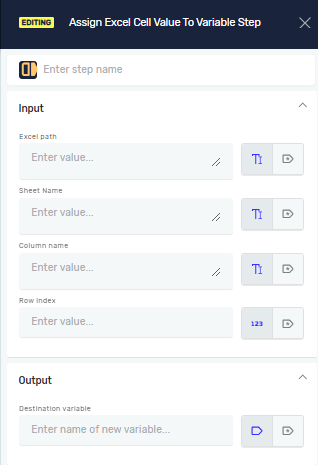
Assign Excel Cell Value To Variable Step
The Assign Excel Cell Value To Variable step reads a value from a specific cell in an Excel file. It then saves this value into a string variable. Use this step to pull data from your spreadsheets to use in your automation processes.
How to Use Assign Excel Cell Value To Variable
This step lets you get data from an Excel file.
Step 1: Add the Step to Your Process
- Drag and drop the "Assign Excel Cell Value To Variable" step into your process workflow.
- (Optional) Give the step a custom name in the Step name field.
Step 2: Set Up Input Parameters
- Excel path (Required):
- Type in the full path to your Excel file.
- You can use an existing variable that holds the file path.
- Sheet name (Required):
- Type in the exact name of the Excel sheet you want to read from.
- You can use an existing variable for the sheet name.
- Column name (Required):
- Type in the letter of the Excel column (e.g., "A", "B", "C").
- Row index (Required):
- Type in the number of the Excel row (e.g., "1", "2", "3").
Step 3: Set Up the Output Variable
- Destination variable (Required):
- Type in the name of an existing string variable. The cell value will be saved here.
- Or, type in a new variable name. Robotiq.ai will create a new string variable with this name.
Parameters Explained
Step name (Optional)
- A custom name for this step in your process.
- Example:
Read Customer ID - Use it to make your process easier to understand.
Excel path (Required)
- The full file path to the Excel workbook.
- Example:
C:\Data\MyReport.xlsxor a variable like{{excelFilePath}} - Use this to tell the step which Excel file to open.
Sheet name (Required)
- The name of the sheet inside the Excel workbook.
- Example:
Sheet1or a variable like{{activeSheet}} - Use this to say which sheet has the data you need.
Column name (Required)
- The letter for the column in Excel (e.g., A, B, C).
- Example:
C - Use this to find the right column.
Row index (Required)
- The number for the row in Excel (e.g., 1, 2, 3).
- Example:
5 - Use this to find the right row.
Destination variable (Required)
- The name of the string variable where the cell's value will go.
- Example:
customerName - Use this to save the data you pulled out for later use in your process.
Related Articles
- Read Value From Excel File Step
- Write Value To Excel File Step
- Open Excel File Step and Close Excel File Step
- Define Variable Step - Robotiq.ai Help Center
Need Help?
Can't find what you're looking for? Join the Robotiq Community to get help from other users and the Robotiq team.