Read Text From Image Step
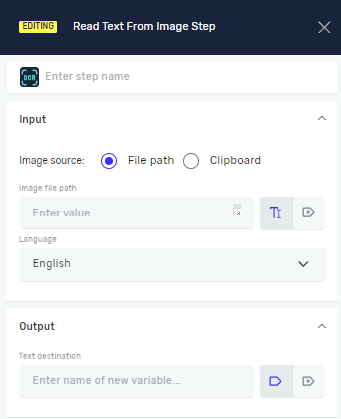
The Read Text From Image step takes text from an image file. You can use this to automate tasks that involve reading information from scanned documents, screenshots, or other images.
How to Use Read Text From Image
This step reads text from an image and puts it into a variable.
Step 1: Add the Read Text From Image Step
- Drag and drop the Read Text From Image step into your process.
- (Optional) In the Step Name field, give the step a custom name.
Step 2: Set Up Input Parameters
- Choose the Image source:
- File path: Use this if the image is saved as a file.
- Clipboard: Use this if the image is currently in your clipboard.
- If you picked File path, give the Image file path:
- Type the name of an existing text variable that holds the image file path.
- Or, make a new text variable to store the image file path.
- Pick the Language for the text in the image. English is the default.
Step 3: Set Up Output Parameters
- In the Text destination field, type the name of an existing text variable. The text found will be saved here.
- Or, make a new text variable to store the text.
Parameters Explained
Step Name (Optional)
- A custom name for the process step.
- This name shows up on the step box in the editor.
Image source (Required)
- Says where the image comes from.
- Choices:
File path,Clipboard.
Image file path (Required, if Image source is File path)
- The location of the image file.
- Example:
myImagePathVariable - This must be a text data type.
Language (Required)
- The language of the text in the image.
- Default:
English
Text destination (Required)
- The variable where the text found will be stored.
- Example:
extractedTextVariable - This must be a text data type. You can use a step like Set Variable Value Step - Robotiq.ai Help Center to work with this variable later.
Related Articles
- Read Text From Pdf Step - Learn how to get text from PDF files.
- Copy Clipboard To Variable Step - See how to copy content from the clipboard to a variable.
Need Help?
Can't find what you're looking for? Join the Robotiq Community to get help from other users and the Robotiq team.