Go Forward Browser Selenium Step
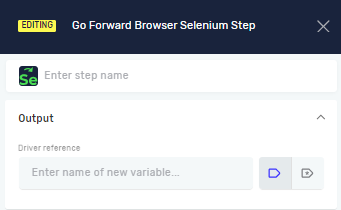
The Go Forward Browser Selenium Step moves your automated browser session forward to the next page in its history. Use this step to navigate through web pages, just like clicking the "forward" button in a web browser.
How to Use the Go Forward Browser Selenium Step
Add this step to your process when you need to move forward in the browser's history.
Step 1: Add the Go Forward Browser Selenium Step
- Drag and drop the Go Forward Browser Selenium Step into your process workflow.
- Put it after a step that does something in the browser, like going to a URL or clicking a link.
Step 2: Configure the Step
- Click on the Go Forward Browser Selenium Step in your workflow.
- In the properties panel, set up the Driver Reference parameter.
Parameters Explained
Step Name (Optional)
- A custom name for this step in your process.
- Example:
Go Forward to Next Page - Use this to make your workflow easier to understand.
Driver Reference (Required)
- The variable that holds your active Selenium browser session.
- Example:
myBrowserDriver - You need to set up this variable using an Open Selenium Step before you can use this step.
Related Articles
Need Help?
Can't find what you're looking for? Join the Robotiq Community to get help from other users and the Robotiq team.