Replace Text Step
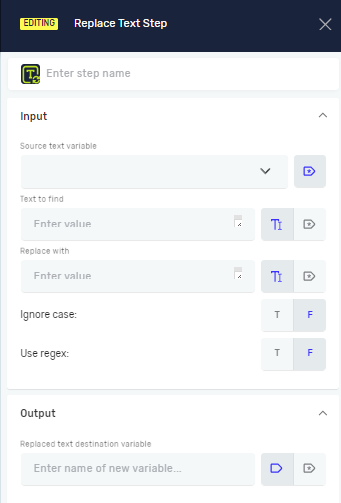
The Replace Text step finds specific characters or patterns in a text variable. It then swaps them out for new characters. You can save the changed text to a new variable or an existing one.
Use this step to clean up data, make text formats consistent, or change specific parts of a string.
How to Use the Replace Text Step
Step 1: Add the Replace Text Step
- Open your workflow in the Process Editor.
- Drag and drop the Replace Text step into your workflow.
Step 2: Configure Input Parameters
Source text variable (Required)
- The name of the string variable that holds the original text.
- Example:
myOriginalString
Text to find (Required)
- The characters or regular expression you want to find in the
Source text variable. - You can type in a value directly or use an existing variable.
- Example:
"old_word"orsearchPatternVariable
Replace with (Required)
- The characters that will take the place of the
Text to find. - You can type in a value directly or use an existing variable.
- Example:
"new_word"orreplacementValueVariable
Ignore case (Required)
- A toggle to choose if the search should care about upper or lower case letters.
- T (True): The search doesn't care about case (e.g., "Apple" matches "apple").
- F (False): The search does care about case (this is the default).
Use regex (Required)
- A toggle to choose if
Text to findis a regular expression. - T (True):
Text to findis treated as a regular expression. - F (False):
Text to findis treated as a normal string (this is the default).
Step 3: Configure Output Parameter
Replaced text destination variable (Required)
- The name of the variable where the changed text will be saved.
- You can pick an existing string variable or make a new one.
- Example:
myModifiedString
Parameters Explained
Step name (Optional)
- A custom name for this step in your workflow.
- This helps you find the step in the Process Editor.
Related Articles
- Set Variable Value Step - Robotiq.ai Help Center
- Define Variable Step - Robotiq.ai Help Center
- Get Subtext Step - Robotiq.ai Help Center
- Pad Text Step - Robotiq.ai Help Center
Need Help?
Can't find what you're looking for? Join the Robotiq Community to get help from other users and the Robotiq team.