Read Value From Excel File Step
The Read Value From Excel File step gets a value from a specific cell in an Excel file. It then saves this value into a string variable. Use this step to pull data from your Excel spreadsheets for your automation processes.
What You'll Need
- An Excel file you've already opened using the Open Excel File Step.
How to Read a Value From an Excel File
Use this step to get data from a cell in an open Excel file.
Step 1: Add the Read Value From Excel File Step
- Drag and drop the Read Value From Excel File step into your process workflow.
- (Optional) Give the step a Step name to describe what it does.
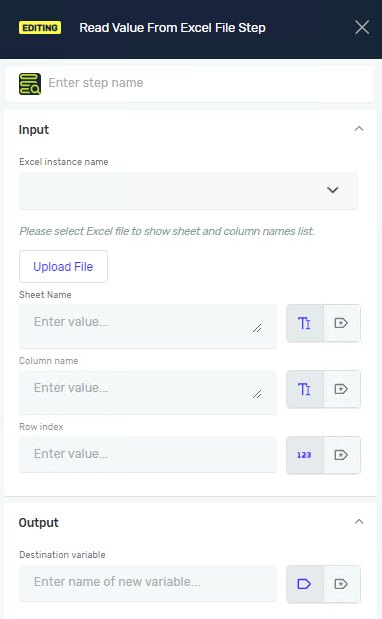
Step 2: Set Up Input Parameters
- Pick the Excel instance name from the dropdown list. This is the name you gave the Excel connection in the Open Excel File step.
- Type in the Sheet name where the cell is. You can use a variable or just type the name.
- Type in the Column name (like "A", "B", "C") for the cell. You can use a variable or type the column letter.
- Type in the Row index (like "1", "2", "3") for the cell. You can use a variable or type the row number.
Step 3: Set Up the Output Variable
- In the Destination variable field, type a name for the variable that will hold the cell's value.
- If the variable doesn't exist, Robotiq.ai will make a new string variable.
Parameters Explained
Step name (Optional)
- A custom name for the process step. This helps you find the step in the editor.
- Example:
Read Product ID - Use it to make your process easier to follow.
Excel instance name (Required)
- The unique name of the Excel connection.
- You set this name in the Open Excel File step.
- Choose from the list of available connections.
Sheet name (Required)
- The name of the worksheet in the Excel file.
- Example:
"Sheet1"or a variable likeexcelSheetName. - Use it to say which sheet to read from.
Column name (Required)
- The letter for the column of the cell you want to read.
- Example:
"A"or a variable liketargetColumn. - Use it to find the exact column.
Row index (Required)
- The number for the row of the cell you want to read.
- Example:
"5"or a variable liketargetRow. - Use it to find the exact row.
Destination variable (Required)
- The name of the string variable where the cell's value will be saved.
- Example:
productCode - If the variable doesn't exist, the system creates it as a string.
Related Articles
- Open Excel File Step and Close Excel File Step - Learn how to connect to an Excel file.
- Write Value To Excel File Step - Learn how to write data to an Excel cell.
- Define Variable Step - Learn how to make new variables.
Need Help?
Can't find what you're looking for? Join the Robotiq Community to get help from other users and the Robotiq team.