Delete Empty Values in List Step
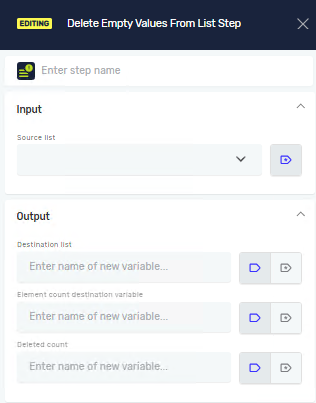
This step gets rid of all empty values from a chosen list variable. Use it to tidy up your data and make sure your lists only have useful information. This step only works with lists of text.
How to Use Delete Empty Values in List
This step takes a list, removes empty entries, and saves the result to a new or existing list.
Step 1: Add the Step to Your Process
- Drag and drop the "Delete Empty Values in List" step into your process.
- (Optional) In the "Step Name" field, give the step a custom name. This helps you find it in your process flow.
Step 2: Set Up Input Parameters
- In the "Source list variable" field, pick the list variable that has the values you want to clean. This list must be a
ListOfStringsdata type.
Step 3: Set Up Output Parameters
- In the "Destination list variable" field, type the name for the list that will hold the cleaned values. You can use a list that's already there or make a new one.
- In the "Element count" field, type a variable name. This number variable will store how many items are in the
Destination list variableafter empty values are gone. - In the "Deleted count" field, type a variable name. This whole number variable will store how many empty items the step removed from the original list.
Parameters Explained
Step Name (Optional)
- A custom name for this process step.
- Example:
Clean My String List - Use this to make your process easier to understand.
Source list variable (Required)
- The name of the list you want to work with.
- This must be a list of text (
ListOfStrings). - Example:
myOriginalList
Destination list variable (Required)
- The variable where the cleaned list will go.
- You can pick an existing
ListOfStringsvariable or make a new one. - Example:
myCleanedList
Element count (Required)
- A number variable that will hold the count of items in the
Destination list variable. - Example:
cleanedListCount
Deleted count (Required)
- A whole number variable that will store how many empty items were removed.
- Example:
emptyValuesRemoved
Related Articles
- Delete Duplicate List Values Step - Learn how to remove repeated entries from a list.
- Add New Element To List Step - Add items to a list that's already there.
- Remove Item from List Step - Remove specific items from a list by what they are or their position.
- Read String From List Step - Read values from a list of text.
Need Help?
Can't find what you're looking for? Join the Robotiq Community to get help from other users and the Robotiq team.