
Convert Date Time To Text Step
he Convert Date Time To Text step changes a date and time variable into a text string. You can set the exact format of the output text. Use this step when you need to show a date or time in a certain way, or when you need to send date information as text to another system.
How to Use Convert Date Time To Text
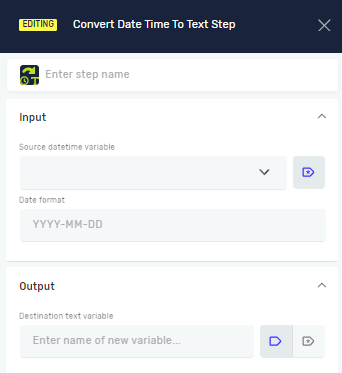
This step turns a datetime variable into a string variable.
Step 1: Add the Step
- Drag the Convert Date Time To Text step into your process.
- (Optional) Give the step a custom name in the Step name field.
Step 2: Set Up Input Parameters
- Source datetime variable (Required)
- Type the name of an existing
datetimevariable. This is the date and time you want to change.
- Type the name of an existing
- Date format (Required)
- Type the format you want for the output text.
- Example:
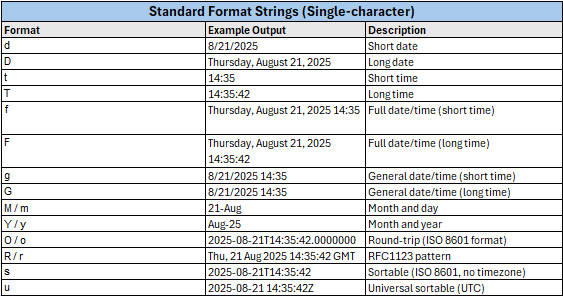
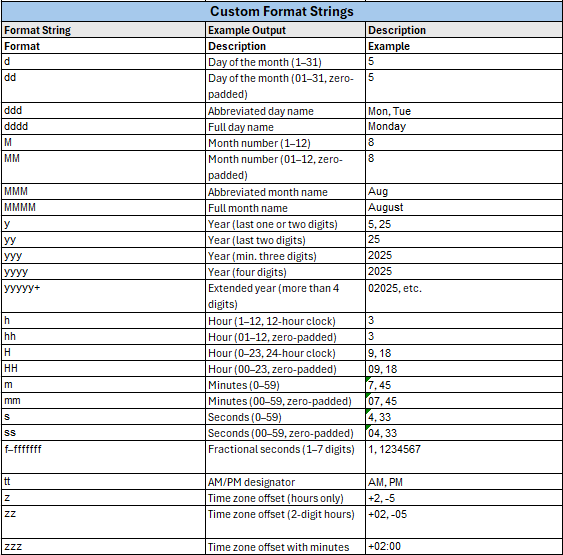
dd.MM.yyyywill make a date look like21.03.2023. - You can use standard or custom formats.
Step 3: Set Up Output Parameters
- Destination text variable (Required)
- Type a name for the new
stringvariable that will hold the converted date and time. - You can also pick an existing
stringvariable to update its value.
- Type a name for the new
Parameters Explained
Step name (Optional)
- A custom name for this step in your process.
Source datetime variable (Required)
- The
datetimevariable you want to change. - Example:
myDateTimeVariable - When to use it: Always provide the
datetimevariable that has the original date and time.
Date format (Required)
- Shows how the
datetimevalue will look as text. - Example:
MM/dd/yyyy HH:mm:ssfor03/21/2023 14:30:00 - When to use it: Tell it the exact format you need for the output string.
Destination text variable (Required)
- The
stringvariable where the changed date and time will be saved. - Example:
formattedDateString - When to use it: Always provide a variable name to hold the result.
Important Things to Know About Date Formats
When you use a custom format, be careful with characters that have a special meaning in date formatting. These characters will be replaced by their date or time values, even if they are part of your custom text.
Example:
- If you use the format
"day: d" - The output might look like
"21a25: 21" - This happens because
dmeans day, andymeans a short year. Theyin "day" is read as part of the date format.
Additional comment
You can use either standard or custom formats to convert dates, times, or parts of them.
When using a custom format, you can integrate it with other text, but you need to be cautious. Each character that holds a specific meaning will be replaced by the corresponding value of the date or time. For example, in the format "day: d" the output might appear as "21a25: 21" because "d" stands for day and "y" stands for short year. Even within your custom text, these characters will be substituted with their respective date values.
Related Articles
- Convert Text To Date Time Step
- Define Variable Step - Robotiq.ai Help Center
- Set Variable Value Step - Robotiq.ai Help Center
Need Help?
Can't find what you're looking for? Join the Robotiq Community to get help from other users and the Robotiq team.