Encode Decode Base64 Step
Encode Decode Base64 Step - Robotiq.ai
The Encode Decode Base64 step changes text to or from Base64 format. You can use this to protect sensitive data or get data ready to send.
How to Use the Encode Decode Base64 Step
Use this step to turn a string into Base64 or change a Base64 string back to its original form.
Step 1: Add the Encode Decode Base64 Step
- Open your process in the Process Editor.
- Drag and drop the Encode Decode Base64 step into your workflow.
Step 2: Set Up Input Parameters
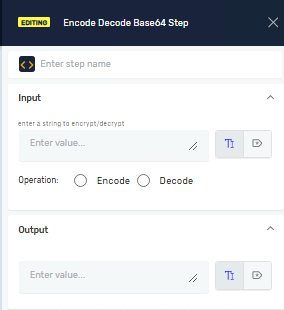
- In the String to encript/decript field, type the text you want to work with. You can use a variable or just type the text directly.
- Pick the Operation type:
- Choose Encode to change your text to Base64.
- Choose Decode to change a Base64 string back to regular text.
Step 3: Set the Output
- In the Result field, type the name of a new or existing string variable. This variable will hold the text after it's been encoded or decoded.
Parameters Explained
Step Name (Optional)
- A custom name for this step in the Process Editor.
- Example:
Encode_Password
String to encript/decript (Required)
- The text you want to encode or decode.
- This can be a variable that holds text or text you type directly.
- Example:
myPasswordVariableor"Hello World"
Operation (Required)
- This sets whether the step encodes or decodes the input string.
- Options:
Encode,Decode - When to use: Pick
Encodeto change text to Base64. PickDecodeto change Base64 back to text.
Result (Required)
- The variable where the output (the encoded or decoded string) will be saved.
- This variable must be a string type.
- Example:
encodedStringordecodedText
Related Articles
- Set Variable Value Step - Learn how to use variables in your processes.
- Process Arguments - Learn how to use input variables in your processes.
Need Help?
Can't find what you're looking for? Join the Robotiq Community to get help from other users and the Robotiq team.