Get File or Folder Name Step
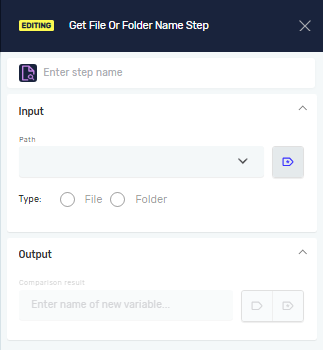
The Get File or Folder Name step gets the name of a specific file or folder. You can use it to pull just the name from a full path, with or without the file extension.
How to Use Get File or Folder Name
Use this step to get a file or folder's name from its full path.
Step 1: Add the Step to Your Process
- Drag and drop the Get File or Folder Name step into your process.
- (Optional) In the Step Name field, type a custom name for this step.
Step 2: Configure Input Parameters
- In the Path field, pick an existing text variable that holds the full path to the file or folder.
- In the Type field, choose if you are getting the name of a
Fileor aFolder. - If you picked
Filefor the Type:- In the Save with extension field, choose
T(True) to include the file extension in the output name, orF(False) to leave it out.Fis the default setting.
- In the Save with extension field, choose
Step 3: Define Output Parameter
- In the Name field, pick an existing text variable or make a new one. This variable will hold the file or folder name you pulled out.
Parameters Explained
Step Name (Optional)
- A custom name for the step in your process.
- Example: "Get Invoice File Name"
Path (Required)
- The full path to the file or folder. This must be an existing text variable.
- Example:
C:\Documents\Invoice.pdf
Type (Required)
- Says if you are getting a
Filename or aFoldername. - Options:
File,Folder
Save with extension (Required, only shows if Type is File)
- Controls if the file extension is part of the output name.
T: Includes the extension (e.g., "Invoice.pdf")F: Leaves out the extension (e.g., "Invoice")- Default value:
F
Name (Required)
- The variable where the file or folder name will be saved. This can be a new or existing text variable.
- Example:
fileName(will contain "Invoice.pdf" or "Invoice" depending on settings)
Related Articles
Need Help?
Can't find what you're looking for? Join the Robotiq Community to get help from other users and the Robotiq team.