Switch Default Case Step
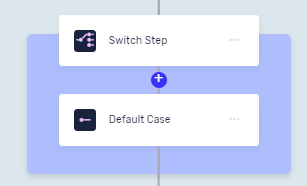
The Switch Default Case Step tells your automation what to do when none of the other conditions in a Switch Step are met. It's a backup plan, making sure your process always has something to do.
How to Use the Switch Default Case Step
When you add a Switch Step to your process, a Default Case Step comes with it. You can put other steps inside this block.
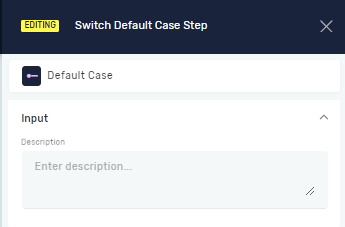
You can't add input or output variables directly to the Default Case Step.
Example Uses
- Error Handling: If a variable doesn't match any specific case, the Default Case Step can record an error or send a message.
- General Processing: Use it for actions that should happen if none of the specific conditions are true.
Parameters Explained
Step Name (Optional)
- This is a custom name for the process step.
- It labels the step box in the editor.
Related Articles
- Switch Step - Learn how to use the main Switch Step to control how your process runs.
- Switch Case Step - Learn how to set up specific conditions within a Switch Step.
- If Step - Look into another way to run code based on conditions.
Need Help?
Can't find what you're looking for? Join the Robotiq Community to get help from other users and the Robotiq team.