Open Excel File Step and Close Excel File Step
The Open Excel File and Close Excel File steps help you manage your connection to an Excel file. You use them together to handle your Excel data correctly.
How to Use Open and Close Excel File Steps
Always use these steps in pairs. First, open the Excel file. Then, do your Excel work. Finally, close the Excel file.
Open Excel File Step
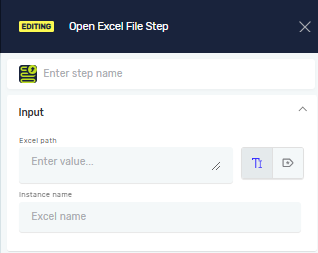
This step connects to an Excel file.
- Drag the Open Excel File step onto your canvas.
- Set up the parameters in the step properties.
Parameters Explained
Excel file path (Required)
- The full path to your Excel file.
- Example:
C:\Data\MyReport.xlsx - You can use a variable you've already made for the path.
Excel instance name (Required)
- A unique name for this Excel connection.
- Example:
ReportData - You will use this name in other Excel steps to refer to this specific file.
Close Excel File Step
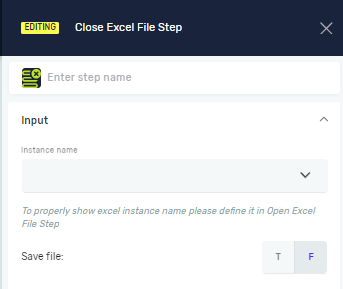
This step closes the connection to an Excel file. It also lets you save any changes you made.
- Drag the Close Excel File step onto your canvas.
- Set up the parameters in the step properties.
Parameters Explained
Excel instance name (Required)
- The unique name of the Excel connection you want to close.
- This name must match an
Excel instance nameyou set in an earlier Open Excel File step. - The text box shows a list of instance names you've already defined.
Save file (Required)
- Choose whether to save changes you made to the Excel file.
- T (True): Saves all changes.
- F (False): Ignores changes (this is the default).
Related Articles
Need Help?
Can't find what you're looking for? Join the Robotiq Community to get help from other users and the Robotiq team.