Save Screenshot Step
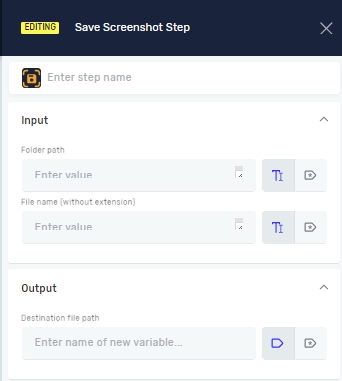
The Save Screenshot step takes a picture of the current screen. It saves the image to a folder you pick. This step gives you the full path to the saved file.
Use this step to get visual proof of a process. You can also use it for debugging or checking things.
How to Use the Save Screenshot Step
Add this step to your process to take a screenshot.
Step 1: Add the Save Screenshot Step
- Open your process in the Robotiq.ai editor.
- Drag and drop the Save Screenshot step into your workflow.
Step 2: Set Up the Step
- Step name (Optional): Give the step a custom name. This helps you find it in your process.
- Folder Path (Required): Type the full path to the folder where you want to save the screenshot.
- You can use an existing text variable or type the path directly.
- Example:
C:\Screenshotsor{{myScreenshotFolder}} - Tip: You can use the Create Folder Step to make sure the folder is there first.
- File Name (without extension) (Required): Type the name for your screenshot file. Don't include the file type (like
.png,.jpg).- You can use an existing text variable or type the name directly.
- Example:
ProcessErroror{{currentDate}}_screenshot - Tip: Combine this with the Get Current Date Step to make unique file names.
- Destination File Path (Required): Pick a variable to hold the full path of the saved screenshot.
- You can choose an existing text variable or make a new one.
- This variable will have the complete file path, including the file name and its type.
What the Settings Mean
Step name (Optional)
- A custom name for this step in your process.
- Example:
Capture_Error_Screen - Use it to make your process easier to understand.
Folder Path (Required)
- The full folder path where the screenshot will be saved.
- Example:
C:\RobotiqLogs\Screenshots - This has to be a real folder path.
File Name (without extension) (Required)
- The name you want to give the screenshot file, but without the file type.
- Example:
LoginFailure - The system automatically adds
.png.
Destination File Path (Required)
- A text variable that will store the full path to the saved screenshot file.
- Example:
screenshotFullPath - Use this variable in later steps if you need to point to the saved file.
Related Articles
- Create Folder Step - Learn how to make a new folder.
- Get Current Date Step - Get the current date and time for file names that change.
Need Help?
Can't find what you're looking for? Join the Robotiq Community to get help from other users and the Robotiq team.