Terminate Window Application Step
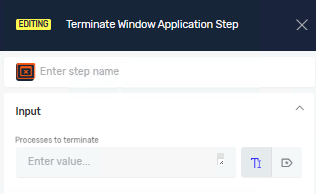
The Terminate Window Application step closes specific applications on your system. You use it to make sure certain programs aren't running before or after a process.
How to Use Terminate Window Application
This step closes one or more running applications.
Step 1: Add the Terminate Window Application Step
- Open your process in the Robotiq.ai Process Editor.
- Drag and drop the "Terminate Window Application" step into your process flow.
Step 2: Configure the Step
- Select the "Terminate Window Application" step in your process.
- In the properties panel, find the "Processes to terminate" field.
Parameters Explained
Step Name (Optional)
- A custom name for the step in the Process Editor.
- Example:
CloseChromeAndWord - Use this to make your process steps easier to find.
Processes to terminate (Required)
- The exact names of the applications you want to close.
- Separate multiple names with a semicolon, no spaces.
- Example:
chrome;WINWORD;SnippingTool - The name doesn't care about capitalization. Don't include ".exe".
How to Find Process Names
You need the exact process name for the "Processes to terminate" parameter. Use the Command Prompt (cmd) to find these names.
- Make sure the application you want to close is running.
- Open Command Prompt (cmd) on your computer.
- Type
tasklistand press Enter. - Look for the application name in the list.
Example:
- If you open Notepad,
tasklistshows "Notepad.exe". You would useNotepad. - For Google Chrome, use
chrome. - For Microsoft Word, use
WINWORD. - For Snipping Tool, use
SnippingTool.
Related Articles
Need Help?
Can't find what you're looking for? Join the Robotiq Community to get help from other users and the Robotiq team.