Fetch Token For MFA Step
The Fetch Token For MFA step gets a Multi-Factor Authentication (MFA) token. It uses the TOTP (Time-based One-Time Password) algorithm. You can use this token to authorize things in your automation.
What You'll Need
- An authenticator app (like Google Authenticator, Authy) on your phone.
- A secret key from your account's MFA setup.
How to Get Your Secret Key
Before you use this step, you need to get a secret key from the service you want to automate.
- Log in to your account on the service.
- Set up a new authentication method. You usually find this in your security settings.
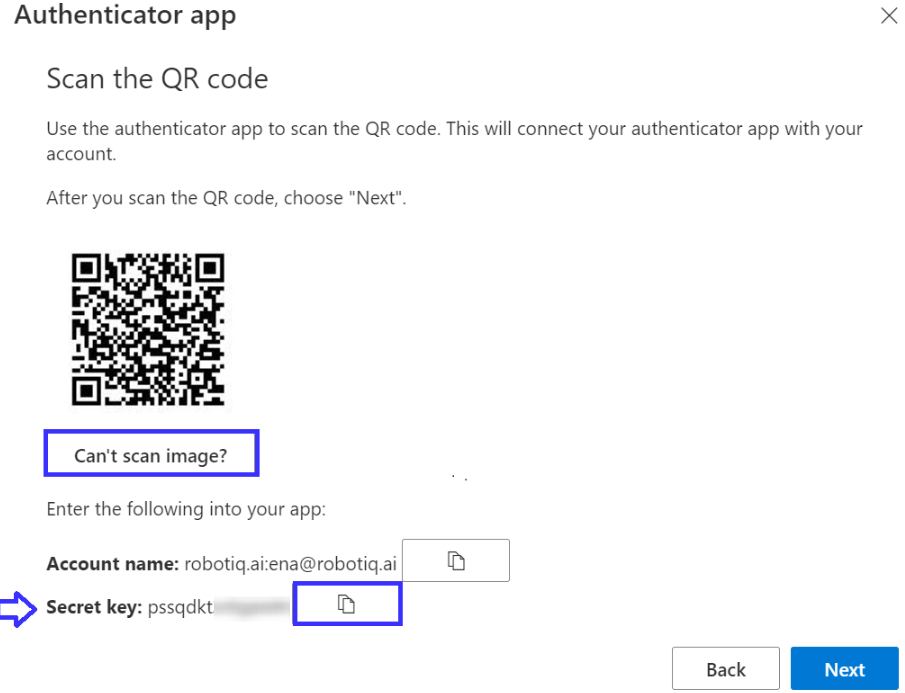
- The service will give you a secret key. This often shows up as a QR code.
- Scan the QR code with your authenticator app.
- Important: Keep the secret key safe. You'll need it if you set up the authenticator on a new device. The secret key only changes if you reset your MFA setup or user credentials.
How to Use Fetch Token For MFA
This step adds an MFA token to your process.
Step 1: Add the Fetch Token For MFA Step
- Open your process in the Robotiq.ai editor.
- Add the "Fetch Token For MFA" step to your workflow.
Step 2: Set Up Input Parameters
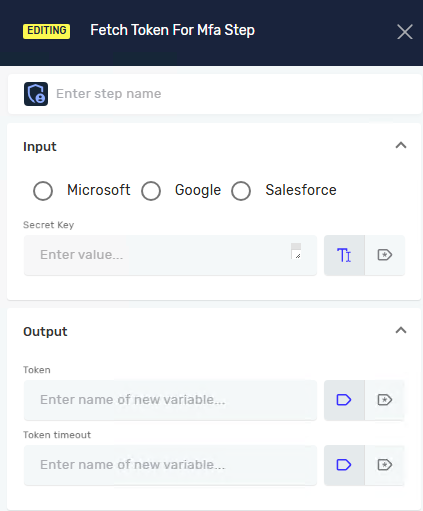
Set up the step using these input parameters:
Provider (Required)
- Pick your token provider from the list.
- Example: "Google Authenticator"
- Use this to say which authenticator app makes the token.
Secret key (Required)
- Type in the secret key you got from your account's MFA setup.
- Example:
JBSWY3DPEHPK3PXP - This key helps the step make the right time-based one-time password.
Step 3: Set Up Output Parameters
Set up variables to hold the output of this step:
Token (Required)
- Make a new text variable or pick an existing one.
- This variable will hold the MFA token that's made.
- Example:
mfaToken
Token timeout (Required)
- Make a new number variable or pick an existing one.
- This variable holds how many seconds are left before the token expires.
- Example:
tokenRemainingTime
More Information
The TOTP algorithm makes a one-time password using the current time. The token usually works for 30 seconds and then changes. The timing depends on when you start the process. You might get a token that's almost expired.
It's a good idea to check the Token timeout output variable. This tells you how many seconds are left before the token is no longer valid.
Related Articles
Need Help?
Can't find what you're looking for? Join the Robotiq Community to get help from other users and the Robotiq team.
Additional comments
Time-based one-time password (TOTP) is a computer algorithm that generates a one-time password (OTP) using the current time as a source of uniqueness. The token is valid for 30 seconds and then automatically refreshed. The timing depends on when you initiate the process, so you may retrieve the token at the end of its validation period. It is recommended to check the output variable "Token timeout" to see how many seconds are left for validation.
Get Secret Key
Log in to your account and set up a new authentication method through the application. You will receive a secret key, typically in the form of a QR code, which you need to scan with an authenticator app on your mobile phone. This secret key is used to generate time-based one-time passwords (TOTP), which change periodically but are always derived from the same key. Make sure to save the secret key securely, as it allows you to regenerate the same tokens if you need to set up the authenticator on a new device. The secret key does not change unless you reset your MFA setup or change your user credentials