Else If Step
The Else If Step lets you add more conditions to an If Step. It runs a block of code only if the previous If condition is false and its own condition is true. Use it to make workflows with many possible outcomes.
How to Use the Else If Step
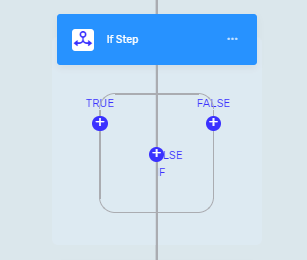
You can only add an Else If Step inside an If Step. It gives you another condition to check if the first If condition isn't met.
Step 1: Add an If Step
- Drag an If Step into your process.
- Set up the If Step with its first condition.
Step 2: Add an Else If Step
- Drag an Else If Step inside the If Step.
- Put it after the first "If" part.
Step 3: Define the Else If Condition
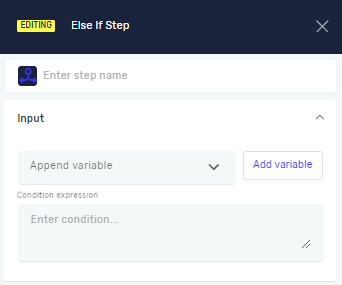
- Click on the Else If Step.
- Type your condition in the Condition expression field.
Important: The Else If Step will only run if the condition in the If Step above it is false. If the Else If condition is also false, the process goes to an Else Step if you have one.
Parameters Explained
Step name (Optional)
- A custom name for the step.
- Example: "Check for Admin Role"
- Use this to make your process easier to understand.
Append variable (Optional)
- Pick an existing variable to save the result of the condition.
- Use this to send the true/false outcome to other steps.
Condition expression (Required)
- A true/false expression that decides if the code block runs.
- Example:
userRole == "admin" - The expression must result in
trueorfalse.
Related Articles
- If Step - Learn how to start using conditional logic in your processes.
- Else Step - See how to handle situations where no conditions are met.
- Define Variable Step - Learn how to create variables to use in conditions.
Need Help?
Can't find what you're looking for? Join the Robotiq Community to get help from other users and the Robotiq team.