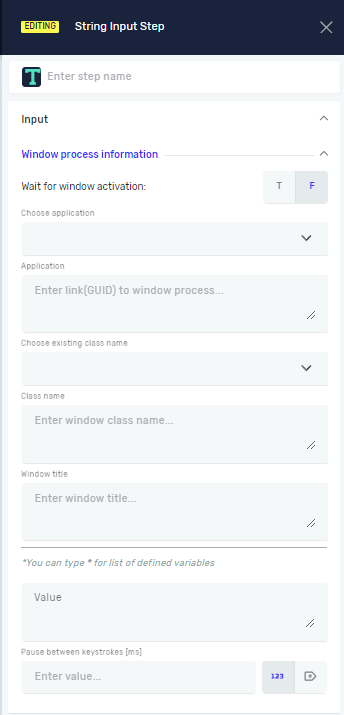
String Input Step
The String Input step types a specific text string into an application that's already open. Use this step to automate typing text into fields, forms, or documents in desktop applications.
How to Use the String Input Step
Add this step to your process to type text into an application.
Step 1: Add the String Input Step
- Drag and drop the String Input step into your process flow.
- Click the step to open its properties.
Step 2: Set Up Application Details
- In the Choose Application field, pick the application instance you want to type into. You need to have opened this application earlier in your process.
- The Application field will automatically fill in with the application instance name.
Step 3: Type in the Text
- In the Value field, type the text you want to write. You can also use a variable that already holds the text.
Parameters Explained
Step name (Optional)
- A custom name for this process step. This name shows up on the step box in the editor.
- Example:
Enter Username
Wait for window activation (Required)
- This setting controls if the robot waits for the target window to be active before typing.
T(True): The robot waits for the window to become active.F(False): The robot does not wait. This is the default setting.
Choose Application (Required)
- The name of the application instance where the text will be typed. This application must be running.
- Example:
MyExcelApp
Application (Required)
- The technical name of the application instance. This field fills in automatically after you pick an application in "Choose Application."
Choose existing class name (Optional)
- The unique name of a specific window part within the application instance. Use this to aim for a particular input field.
Class name (Optional)
- The technical name of the application instance window part.
Window title (Optional)
- The title you see on the application window. Use this to make sure the robot types into the right window if you have several open.
Value (Required)
- The text or variable holding the text to be typed into the application.
- Example:
"Hello World"ormyVariableName
Pause between keystrokes[ms] (Optional)
- The delay in milliseconds between each character typed.
- Example:
50(for a 50ms pause between characters) - Use this to make the typing seem more human or to avoid problems with input fields that load slowly.
Related Articles
- Open Window Process Step - Learn how to open applications before using the String Input step.
- Key Input Step - Find out how to simulate pressing individual keys.
- Input Selenium Step - Learn how to type text into web applications.
Need Help?
Can't find what you're looking for? Join the Robotiq Community to get help from other users and the Robotiq team.