Get File Extension Step
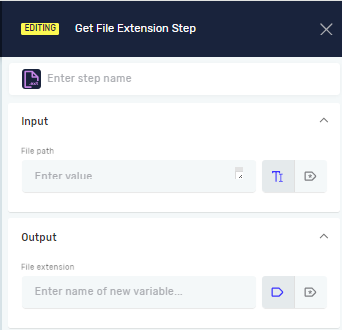
The Get File Extension step takes a file path and pulls out just the file extension. This helps you figure out file types in your automated tasks.
How to Use Get File Extension
This step puts the file extension into a variable you name.
Step 1: Add the Get File Extension Step
- Drag the "Get File Extension" step into your process flow.
- (Optional) Give the step a custom name in the "Step name" field. This helps you identify the step in the editor.
Step 2: Configure Input Parameters
File path (Required)
- Type the full path to the file.
- You can use a string variable you already have or just type the path.
- Example:
C:\Documents\report.pdfor{{filePathVariable}}
Step 3: Configure Output Parameters
File extension (Required)
- Type the name for a new variable to hold the file extension.
- You can also pick a variable you've already made.
- The step will put the file extension (like "pdf" or "txt") into this variable.
Parameters Explained
Step name (Optional)
- A custom name for the step in your process.
- This name shows up in the Process Editor.
File path (Required)
- This is the full path to the file.
- Type: String variable or a direct string.
- Example:
C:\Users\User\document.docx
File extension (Required)
- This is the variable where the file extension will be saved.
- Type: A new variable or one you already have.
- Example: If the file path is
C:\report.xlsx, this variable will holdxlsx.
Related Articles
- Define Variable Step - Learn how to create new variables.
- Set Variable Value Step - See how to change what's in existing variables.
- Change File Extension Step - Find out how to change a file's extension.
Need Help?
Can't find what you're looking for? Join the Robotiq Community to get help from other users and the Robotiq team.