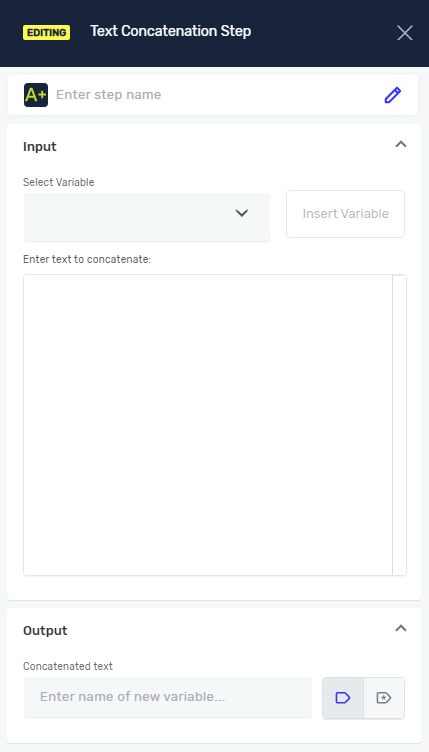
Text Concatenation Step
The Text Concatenation step takes several values and variables and puts them together into one text string. You can use it to build custom messages, file paths, or data entries from different bits of information in your process.
How to Use the Text Concatenation Step
Use this step to make one string variable from different inputs.
Step 1: Add the Text Concatenation Step
- Drag the Text Concatenation Step into your process workflow.
- (Optional) Give it a Step Name so you can find it in your process.
Step 2: Say What Text to Combine
- In the Text to concatenate field, type the text you want to put together.
- To add variables:
- Pick a variable from the Append variable menu. This menu shows all local and global variables you can use in your process.
- Click the Add variable button to put the chosen variable into the Text to concatenate field.
- You can mix regular text and variables here.
Example: If you want to combine "Hello, " with a variable called UserName and "!", your Text to concatenate field might look like this: Hello, {UserName}!
Step 3: Save the Result
- In the Concatenated text field, pick an existing string variable or make a new one.
- The combined text will be saved into this variable.
What the Parameters Mean
Step Name (Optional)
- A custom name for the process step.
- This helps you find the step in the editor.
Append variable (Optional)
- A list of all available variables (local and global).
- Use this to pick a variable to add to your combined text.
Add variable (Optional)
- A button that puts the variable you've chosen from the Append variable menu into the Text to concatenate field.
Text to concatenate (Required)
- This field holds the text and variables you want to merge.
- The final output will come from what's in this field.
Concatenated text (Required)
- This is the variable where the final combined text string is saved.
- You can pick an existing string variable or make a new one here.
Related Articles
Need Help?
Can't find what you're looking for? Join the Robotiq Community to get help from other users and the Robotiq team.