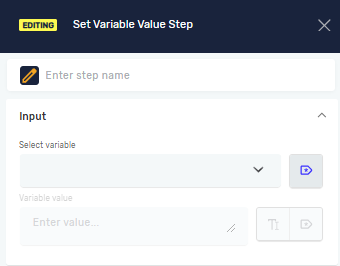
Set Variable Value Step
The Set Variable Value step lets you change a variable's value in your automation. You can update a variable with a set value or use the value from another variable.
How to Use the Set Variable Value Step
Use this step to update variables at specific points in your process.
Add the Step
- Open your process in the Robotiq.ai Process Editor.
- Drag and drop the Set Variable Value step into your workflow.
Configure the Step
- Click on the Set Variable Value step to open its properties.
- Give it a Step Name (optional) to help identify it in your process.
- Pick the Variable you want to update from the dropdown list. This has to be a Global Variable that already exists, has a process scope, and isn't marked as constant.
- Type in the Variable value. This can be a set value or another existing variable.
Parameters Explained
Step Name (Optional)
- A custom name for this step.
- Example:
Update Counter - Use this to make your process easier to understand.
Variable (Required)
- The Global Variable you want to change.
- This variable must be set up as non-constant and have a process scope.
- Example:
myCounter - You need to define the variable before you can set its value.
Variable value (Required)
- The new value for the chosen variable.
- This can be text, a number, or the value of another variable.
- Example:
10oranotherVariable - The type of the value should match the type of the variable you are setting.
Related Articles
- Define Variable Step - Learn how to create new variables.
- Global variables - Understand how global variables work across your processes.
- Set Global Variable Step - Learn how to change global variables within a process.
Need Help?
Can't find what you're looking for? Join the Robotiq Community to get help from other users and the Robotiq team.