Rename File Step
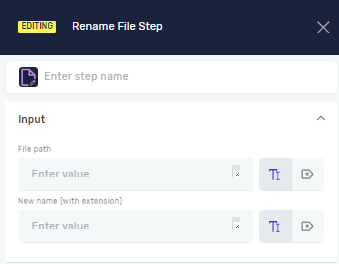
The Rename File Step changes a file's name during a process. Use it to organize files or update names as part of your automation.
How to Use the Rename File Step
Add this step to your process to rename an existing file.
Step 1: Add the Rename File Step
- Drag and drop the Rename File Step into your process workflow.
- Click on the step to open its properties.
Step 2: Configure File Path and New Name
- In the File path field, enter the full path to the file you want to rename. You can use a string variable or a direct path.
- In the New Name (with extension) field, enter the new name for the file, including its extension (for example,
report_final.pdf). You can use a string variable or a direct value.
Parameters Explained
Step name (Optional)
- A custom name for this specific step in your process.
- Example:
Rename Report - Use this to make your process easier to read.
File path (Required)
- The complete path to the file you want to rename.
- Example:
C:\Reports\report_draft.pdfor a variable like{{filePathVariable}} - This must be an existing file.
New Name (with extension) (Required)
- The new name you want to give the file, including its file extension.
- Example:
report_final.pdfor a variable like{{newFileNameVariable}} - The file extension is important so the operating system recognizes the file type.
Related Articles
- Rename Folder Step - Robotiq.ai Help Center
- Change File Extension Step - Robotiq.ai Help Center
- Delete File Step - Robotiq.ai Help Center
- Set Variable Value Step - Robotiq.ai Help Center
Need Help?
Can't find what you're looking for? Join the Robotiq Community to get help from other users and the Robotiq team.