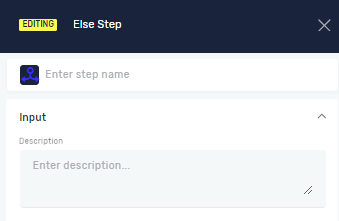
Else Step
The Else Step tells your automation what to do when a condition in an If Step isn't true. It helps you build conditional logic into your automated tasks.
How to Use the Else Step
Put an Else Step inside an If Step to handle cases where the first condition isn't met.
Step 1: Add an If Step
- Drag an If Step into your process flow.
- Set up the condition for the If Step.
Step 2: Add an Else Step
- Inside the If Step, find the "Else" section.
- Drag an Else Step into this section.
- Add other steps inside the Else Step to tell the robot what to do when the If Step's condition is false.
Example: Let's say you have an If Step that checks if a customer's order is over $100.
- If it is, the robot applies a discount (these steps go in the "True" part of the If Step).
- If it's not, the robot sends a regular confirmation email (these steps go in the Else Step).
Parameters Explained
Step name (Optional)
- This is a name you give the Else Step in your process.
- It helps you find the step easily in the Process Editor.
- Example: "Send Standard Email"
Related Articles
- If Step - Learn how to set up conditional logic with the If Step.
- Else If Step - See how to add more conditions to your logic.
Need Help?
If you can't find what you're looking for, join the Robotiq Community to get help from other users and the Robotiq team.