Get Text Length Step
The Get Text Length step counts the number of characters in a text variable. It saves this count as a whole number in another variable.
Use this step when you need to know how long a piece of text is for checking information, formatting, or other process rules.
How to Use Get Text Length
This step takes a text variable and gives you back its character count.
Step 1: Add the Get Text Length Step
- Open your process in the Robotiq.ai Process Editor.
- Drag and drop the Get Text Length step into your workflow.
Step 2: Set up the Step
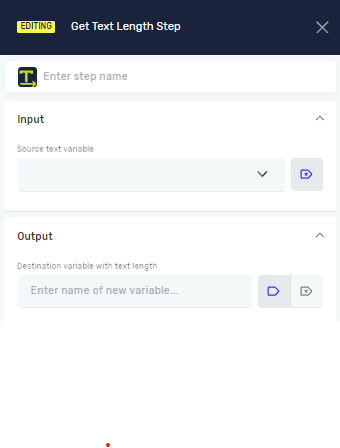
- In the step's properties panel, find the Source text variable field.
- Type the name of the text variable you want to measure.
- In the Destination variable with text length field, type the name of a new or existing whole number variable. The character count will go here.
Example: If myString says "Hello World", the destination variable will hold 11.
What the Settings Mean
Step Name (Optional)
- A custom name for this step in your process.
- Example:
Get_User_Input_Length - Use this to make your process easier to understand.
Source text variable (Required)
- The name of a variable that holds the text you want to count.
- This variable must be a text type.
- Example:
userInputText - You might get this text from a String Input Step or a Set Variable Value Step.
Destination variable with text length (Required)
- The name of the variable where the character count will be saved.
- This variable will be a whole number type.
- You can use a whole number variable you already have or make a new one by typing a new name.
- Example:
textLength - You can then use this whole number variable in other steps, like a Switch Step for making decisions.
Related Articles
- Define Variable Step - Learn how to create new variables.
- Get Subtext Step - Pull out a part of a text string.
- Pad Text Step - Add characters to the front or back of a text string.
Need Help?
Can't find what you're looking for? Join the Robotiq Community to get help from other users and the Robotiq team.