To Lower Text Step
The To Lower Text Step changes all capital letters in a text variable to lowercase. You can use this step to make text input consistent, get data ready for comparisons, or format text for display.
How to Use the To Lower Text Step
This step takes a text variable you already have and makes a new variable with the same content, but in lowercase.
Step 1: Add the To Lower Text Step
- Open your process in the Robotiq.ai Process Editor.
- Drag the "To Lower Text" step from the "Text" category into your workflow.
Step 2: Configure the Step
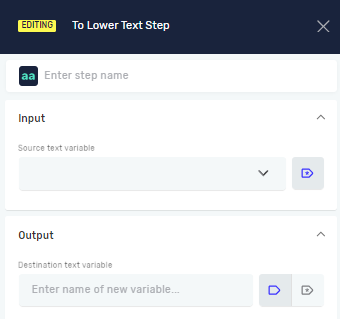
- Step name (Optional): Give this step a custom name. This helps you find it in your process.
- Source text variable (Required): Pick an existing string variable that has the text you want to change.
- Destination Text variable (Required): Type the name for a new variable where the lowercase text will go. If a variable with this name already exists, its value will update.
Example:
If your Source text variable has "HELLO WORLD 123", the Destination Text variable will have "hello world 123".
Parameters Explained
Step name (Optional)
- A custom name for the step.
- Example:
Convert_Email_to_Lowercase - Use this to make your process easier to understand.
Source text variable (Required)
- The name of the string variable that holds the original text.
- Example:
EmailSubject - The content of this variable will be read and changed.
Destination Text variable (Required)
- The name of the string variable where the lowercase text will be saved.
- Example:
LowercaseSubject - This variable will hold the converted text.
Related Articles
Need Help?
Can't find what you're looking for? Join the Robotiq Community to get help from other users and the Robotiq team.