Convert List To Text Step
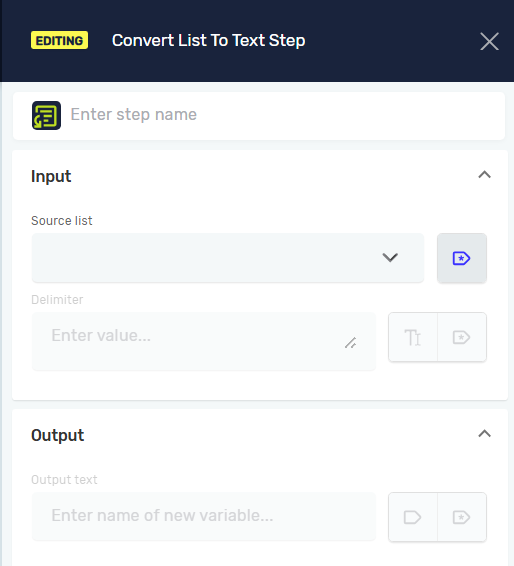
The Convert List To Text Step takes items from a list and puts them into one text string. You can pick a character or string to put between each item in the new text. This is handy when you need to show list data in a way people can read, or when you need to send it to systems that only accept one string.
How to Use Convert List To Text
This step takes a list of text or numbers and turns it into one text variable.
Step 1: Add the Convert List To Text Step
- Open your process in the Robotiq.ai Studio.
- Drag the Convert List To Text Step from the Steps panel onto your canvas.
Step 2: Configure the Step
- Click on the Convert List To Text Step to open its settings.
- You can give the step a custom name in the Step Name field. This helps you find the step in your process.
- Set up the input and output parameters as explained below.
Parameters Explained
Step Name (Optional)
- A custom name for the process step.
- Example:
Convert_UserList_to_String - Use this to make your process easier to understand.
Source list (Required)
- The existing variable that holds the list of text or numbers you want to change.
- Example:
myStringListormyIntegerList - This is the list whose items will be joined together.
Delimiter (Required)
- The value or string variable that separates the items in the new text string.
- Example:
,(comma and space),;,|, or_ - If your list contains
["apple", "banana", "cherry"]and your delimiter is,, the output will be"apple, banana, cherry".
Output text (Required)
- The name of the variable where the final text string will be saved. You can use an existing string variable or make a new one.
- Example:
combinedTextOutput - This variable will hold the final text after the change.
Related Articles
- Add New Element To List Step
- Read String From List Step
- Read Integer from List Step
- Set Variable Value Step
Need Help?
Can't find what you're looking for? Join the Robotiq Community to get help from other users and the Robotiq team.