Selenium driver
For web automation, the required browser driver is normally downloaded automatically when internet access is available. If the environment does not have internet access, the driver must be downloaded manually and placed on the VM before running web automation steps. This also applies when using older deprecated Selenium Steps, which rely on locally available drivers.
The following section explains how to manually download and configure the required driver.
Download driver
Chrome
If you want to automate process on Chrome Browser, you need to check Chrome version clicking on Settings. You can find it on chrome://settings/help
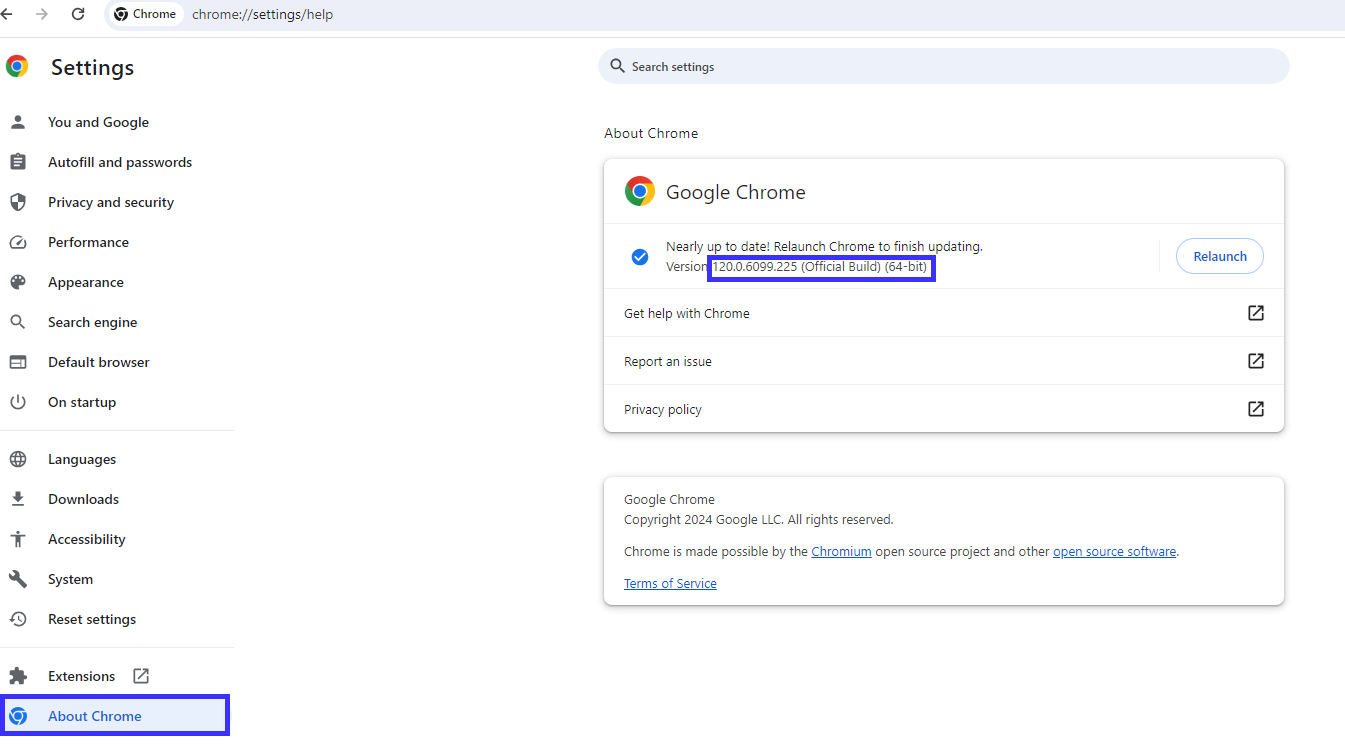
Once you've identified your Chrome version, download the corresponding driver.
Edge
For Edge drive is the similar as at Chrome that is explained before. For check Edge version, visit edge://settings/profiles and then download driver from following link.
Manual Selenium Driver Setup (Offline or Restricted Environments)
If internet access is not available, or if the robot does not have permission to automatically download the Selenium driver, the driver must be installed manually.
Steps for Setup
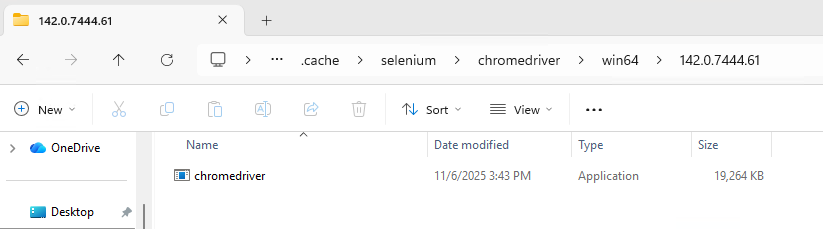
- The driver should be placed on the VM under the following path:
C:\Users\%username%\.cache\selenium - Inside this directory create a folder for the selected browser:
chromedriverormsedgedriver - Inside the browser folder, create a subfolder named:
win64 - Inside
win64, create another subfolder using the exact driver version number (for example:142.0.7444.61).