Move Copy Folder Step
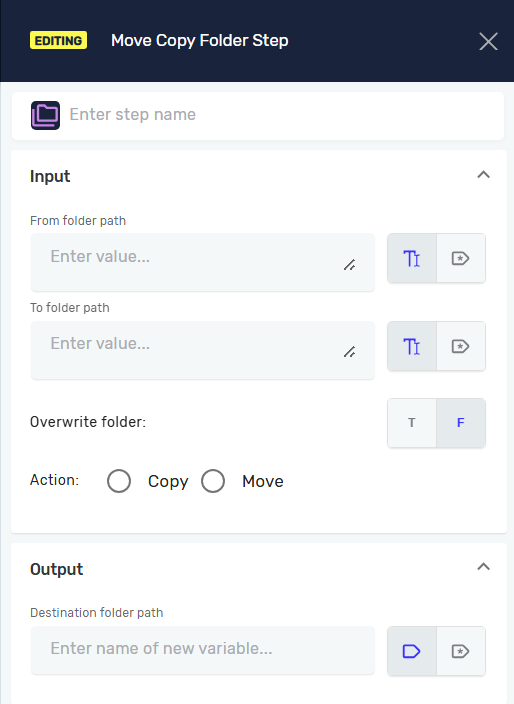
The Move/Copy Folder Step lets you move or copy a whole folder from one spot to another. This helps with organizing files, backing up data, or getting folders ready for other steps in your automation.
How to Use the Move/Copy Folder Step
Add this step to your process to handle folders.
Step 1: Add the Move/Copy Folder Step
- Open your Robotiq.ai process.
- Drag the Move/Copy Folder Step into your workflow.
- (Optional) Give the step a custom name in the Step name field. This helps you find the step in your process editor.
Step 2: Set Up Folder Paths and Action
- In the From folder path field, type the full path of the folder you want to move or copy. You can use a string variable or a direct path.
- In the To Folder Path field, type the full path for the new spot. This can also be a string variable or a direct path.
- For Overwrite File, pick:
- T (True) to replace any folder already there.
- F (False) to keep the existing folder if one is present (this is the default).
- For Action, choose:
- copy to make a duplicate of the folder at the new spot.
- move to transfer the original folder to the new spot.
Parameters Explained
Step name (Optional)
- A custom name for this step in your process.
- Example:
MoveProcessedFiles - Use this to make your workflow easier to understand.
From folder path (Required)
- The full path to the folder you want to move or copy.
- Example:
C:\SourceData\Folder1or a variable like{{sourceFolder}} - This folder must already exist.
To Folder Path (Required)
- The full path where the folder will go.
- Example:
D:\Archive\Folder1or a variable like{{destinationFolder}} - The system will create the destination path if it's not there.
Overwrite File (Required)
- Decides if an existing folder at the destination path should be replaced.
- T: Replace the destination folder if it exists.
- F: Don't replace it. This is the default setting.
Action (Required)
- Says whether to move or copy the folder.
- copy: Makes a duplicate of the folder. The original folder stays where it is.
- move: Moves the folder to the new spot. The original folder is gone.
Destination Path (Required)
- A string variable that will hold the final path of the moved or copied folder.
- Example:
{{finalFolderPath}} - You can use this variable in later steps.
Related Articles
- Create Folder Step - Robotiq.ai Help Center
- Delete Folder Step - Robotiq.ai Help Center
- Rename Folder Step - Robotiq.ai Help Center
- Folder Exists Step - Robotiq.ai Help Center
Need Help?
Can't find what you're looking for? Join the Robotiq Community to get help from other users and the Robotiq team.