Excel To Data Table Step
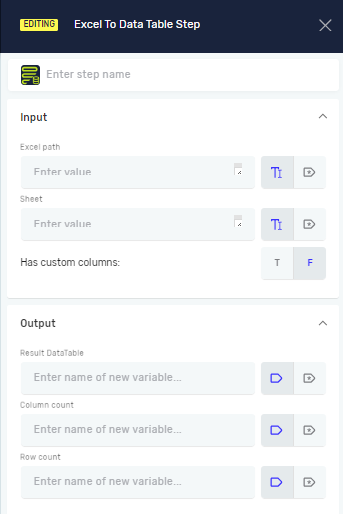
The Excel To Data Table step reads information from an Excel file and puts it into a Data Table variable. Use this step to work with organized data from spreadsheets in your automated tasks.
How to Use Excel To Data Table
Add this step to your process to get data out of an Excel file.
Step 1: Add the Excel To Data Table Step
- Drag and drop the Excel To Data Table step into your process.
- (Optional) Give the step a Step name to label it in the editor.
Step 2: Set Up Input Parameters
Excel Path (Required)
- Type the full path to your Excel file.
- You can use a variable that already holds the file path.
- Example:
C:\Data\MySpreadsheet.xlsx
Sheet (Required)
- Type the name of the sheet you want to read data from.
- You can use a variable that already holds the sheet name.
- Example:
Sheet1
Has custom columns (Required)
- Choose
T(True) if your Excel sheet has a header row. The step will use the first row as column names. - Choose
F(False) if your Excel sheet does not have a header row. The step will give default column names (like Column1, Column2). - Default value:
F
Step 3: Set Up Output Parameters
Result Datatable (Required)
- Type the name of a new or existing variable.
- This variable will hold the data read from the Excel file as a Data Table.
Column count (Required)
- Type the name of a new or existing integer variable.
- This variable will hold the total number of columns in the Data Table.
Row count (Required)
- Type the name of a new or existing integer variable.
- This variable will hold the total number of rows in the Data Table.
Additional comments
The number of custom columns must exactly match the number of columns in the resulting data table. For example, if the resulting data table contains four columns, you must define exactly four custom column definitions. Defining fewer or more columns will result in an error.
Additionally, if the selected data type for any custom column does not match the actual data contained in that column, the system will return a type conversion error.
Related Articles
- Save Data Table To Excel File Step - Learn how to put data from a Data Table back into an Excel file.
- Open Excel File Step and Close Excel File Step - Learn how to handle Excel file connections.
- Save Table Selenium Step - Learn how to put data from a web table into a Data Table variable.
Need Help?
Can't find what you're looking for? Join the Robotiq Community to get help from other users and the Robotiq team.