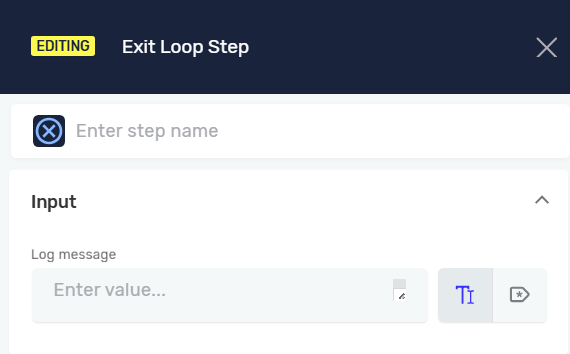
Exit Loop Step
The Exit Loop step stops the current loop in your automation process right away. Use it when a certain condition is met and you don't need to keep going through the loop.
How to Use Exit Loop
You can only use the Exit Loop step inside another loop step. It won't show up as an option otherwise.
Add the Exit Loop Step
- Open your automation process in the Robotiq.ai editor.
- Find the loop where you want to add the Exit Loop step.
- Drag and drop the Exit Loop step into the spot you want within the loop.
- Set up the parameters as needed.
Parameters Explained
Step Name (Optional)
- A custom name for this step in the process editor.
- Example:
Exit Loop if Item Found - Use this to make your process easier to understand.
Log message (Optional)
- A message sent to the HQ log when this step runs.
- Example:
Exited loop: item found - Use this to see why a loop was exited in your process logs.
When to Use Exit Loop
The Exit Loop step works with these loop types:
- Loop number of times step
- Do While
- While Loop
- For each loop
- Excel Rows Loop Step
Important: The Exit Loop step stops the whole loop. If you only want to skip to the next item in the loop, use the Next Loop Iteration Step.
Related Articles
Need Help?
Can't find what you're looking for? Join the Robotiq Community to get help from other users and the Robotiq team.