Excel Column Read Step
The Excel Column Read Step takes a value from a specific Excel cell. It then sends this value to the screen element you're currently focused on inside an Excel loop.
You'll use this step inside an Excel Rows Loop to go through data column by column.
What You'll Need
- A process you've already set up that includes an Excel Rows Loop Step.
- The Excel Column Read Step needs to be placed inside the Excel Rows Loop Step.
How to Use the Excel Column Read Step
This step works inside an Excel Rows Loop. It reads data from a chosen column for each row in the loop.
Add the Excel Column Read Step
- Open your process in the Robotiq.ai editor.
- Drag the Excel Column Read Step into an existing Excel Rows Loop Step.
Parameters Explained
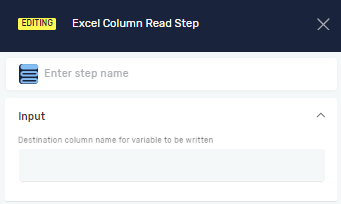
Step name (Optional)
- A custom name for this step in your process.
- This name shows up on the step box in the editor.
Destination column name for variable to be written (Required)
- This is where you tell the step which Excel column letter to read from.
- You can use a variable you've already made or just type in the letter (like "A", "B", "C").
- Example: If you type "A", the step will read data from column A.
Related Articles
- Excel Rows Loop Step - Learn how to set up the loop this step works with.
- Read Value From Excel File Step - Read a single cell value from an Excel file without using a loop.
- Write Excel Column To Variable In Loop Step - Read an Excel column value and save it to a variable while in a loop.
Need Help?
Can't find what you're looking for? Join the Robotiq Community to get help from other users and the Robotiq team.