Empty Folder Step
The Empty Folder Step clears everything out of a specific folder. Use it to get a folder ready for new files or to clean up old, temporary data.
How to Use the Empty Folder Step
Add this step to your process when you need to get rid of all files and subfolders in a directory.
Step 1: Add the Empty Folder Step
- Open your process in the Robotiq.ai editor.
- Drag and drop the Empty Folder Step into your workflow.
Step 2: Set the Folder Path
- Select the Empty Folder Step in your process.
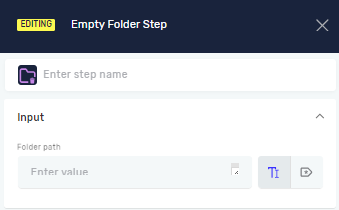
- In the step properties, find the Folder Path setting.
- Type in the name of an existing text variable that has the full path to the folder you want to empty.
Important: This step permanently deletes everything inside the folder you pick. Double-check that the folder path is correct before you run the process.
What the Settings Mean
Step name (Optional)
- A custom name for this step in your process.
- Example: "Clear Temp Files"
- Use this to make your process easier to follow.
Folder Path (Required)
- The variable that holds the full path to the folder you want to empty.
- This variable must be text.
- Example:
myFolderPathVariable(wheremyFolderPathVariablehas a value like "C:\Users\YourUser\Documents\Temp")
Related Articles
Need Help?
Can't find what you're looking for? Join the Robotiq Community to get help from other users and the Robotiq team.