Save Data Table To Excel File Step
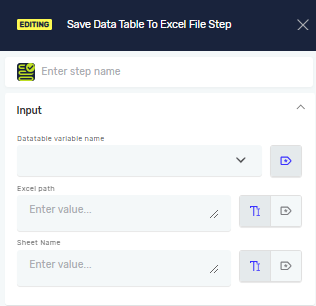
The "Save Data Table To Excel File" step takes data from a Data Table variable and puts it into an Excel file. Use this when you want to export organized data from your automation process into a spreadsheet.
How to Use Save Data Table To Excel File
This step saves what's in a Data Table variable to a specific Excel file and sheet.
Step 1: Add the Step to Your Process
- Drag the "Save Data Table To Excel File" step into your process workflow.
- Click on the step to set up its properties.
Step 2: Set Up the Step Parameters
- Datatable variable name: Pick the Data Table variable that has the data you want to save.
- File Path: Give the full path to the Excel file. You can use a variable you've already set up or just type the path directly.
- Sheet name: Type the name of the sheet in the Excel file where the data will go. You can use a variable or type the sheet name directly.
Important:
- If the Excel file isn't at the path you gave, the system will make a new one. This new file will have your Data Table data in the sheet you named.
- If the Excel file already exists, it needs to have the sheet name you specified.
- The column names from your Data Table variable go into the first row of the Excel sheet.
- The actual data starts on the second row of that Excel sheet.
Parameters Explained
Step name (Optional)
- A custom name for this step in your process. This helps you find the step in the editor.
- Example:
Save Customer Data to Excel
Datatable variable name (Required)
- The name of the Data Table variable that holds the data you want to save.
- Example:
myCustomerDataTable - When to use it: Always pick a Data Table variable that already has data in it.
File Path (Required)
- The full path to the Excel file.
- Example:
C:\Reports\CustomerData.xlsxor a variable likeexcelFilePath - When to use it: Tell the system where to create or update the Excel file.
Sheet name (Required)
- The name of the sheet inside the Excel file where the data will be written.
- Example:
Customer Listor a variable likereportSheetName - When to use it: Choose which sheet will get the Data Table's contents.
Related Articles
- Excel To Data Table Step - Learn how to load data from an Excel file into a Data Table variable.
- Open Excel File Step and Close Excel File Step - See how to open and close Excel files.
- Define Variable Step - Robotiq.ai Help Center - Learn how to make new variables for your processes.
Need Help?
Can't find what you're looking for? Join the Robotiq Community to get help from other users and the Robotiq team.