Merge List Step
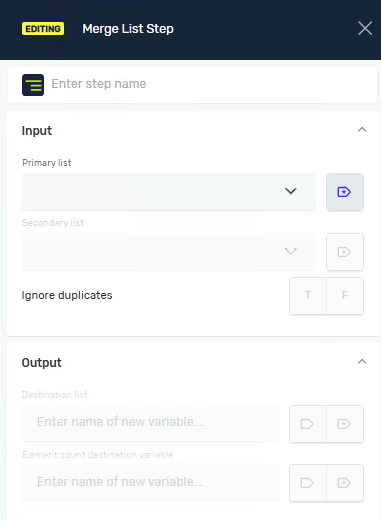
The Merge List step takes two lists and combines them into a new, single list. You can choose if you want the new list to include or exclude duplicate items. This step helps you organize and combine data in your automated tasks.
How to Use the Merge List Step
Use this step to put two lists together into one.
Step 1: Add the Merge List Step
- Drag the Merge List step into your process flow.
- (Optional) Give it a Step Name to label it in the editor.
Step 2: Set Up Input Parameters
- First list variable: Pick the first list you want to merge from your existing variables.
- Second list variable: Pick the second list you want to merge from your existing variables.
- Ignore duplicate elements: Turn this setting on or off:
- T (True): The new list won't have duplicate items. If an item is in both original lists, it will only show up once in the new list. This is the default setting.
- F (False): The new list will include all items from both original lists, even if they are duplicates.
Step 3: Set Up Output Parameters
- Destination list: Choose an existing list variable or make a new one. This variable will hold the combined items from the two input lists.
- Element count destination variable: Choose an existing number variable or make a new one. This variable will hold the total number of unique items in the
Destination list.
Parameters Explained
Step Name (Optional)
- A custom name for the step. This helps you find the step in the Process Editor.
First list variable (Required)
- The variable that holds the first list you want to combine.
- Example:
myListA
Second list variable (Required)
- The variable that holds the second list you want to combine.
- Example:
myListB
Ignore duplicate elements (Required)
- This controls whether the combined list includes duplicate items.
- Values:
T(True) orF(False) - Default:
T(True) - When to use it: Set to
Tif you only want unique items in your list. Set toFif you want all items from both lists, including any duplicates.
Destination list (Required)
- The variable where the combined list will be saved.
- Example:
mergedListResult - When to use it: Always set this to save the result of the merge.
Element count destination variable (Required)
- A number variable that will save the count of unique items in the
Destination list. - Example:
mergedListCount - When to use it: Use this if you need to know how many items are in your combined list.
Related Articles
Need Help?
Can't find what you're looking for? Join the Robotiq Community to get help from other users and the Robotiq team.