Paste To Clipboard Step
The Paste to Clipboard step copies a value you choose to your computer's clipboard. You can then paste this value into other programs or use it later in your automation.
How to Use the Paste to Clipboard Step
Use this step to hold text or data for a short time when you need to move it around in your automation.
Step 1: Add the Paste to Clipboard Step
- Open your process in the Robotiq.ai Process Editor.
- Drag the Paste to Clipboard step from the list of available steps onto your canvas.
Step 2: Set Up the Step
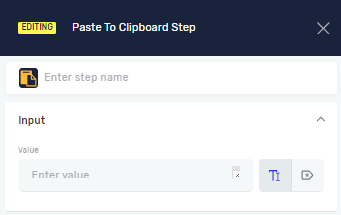
- Click on the Paste to Clipboard step to open its settings panel.
- (Optional) In the Step name field, give this step a custom name. This makes it easier to find in your process flow.
Parameters Explained
Value (Required)
- This is the text or data you want to copy to the clipboard.
- You can type in a fixed phrase (like "Hello World") or pick an existing variable that holds the data.
- Example: If you have a variable called
extracted_text, you would typeextracted_texthere. - When to use it: Use this when you need to copy changing data from an earlier step or a specific phrase.
Related Articles
- Key Input Step - Learn how to make your automation type things from the clipboard.
- Set Variable Value Step - Learn how to handle variables in your process.
Need Help?
Can't find what you're looking for? Join the Robotiq Community to get help from other users and the Robotiq team.