Key Press Selenium Step
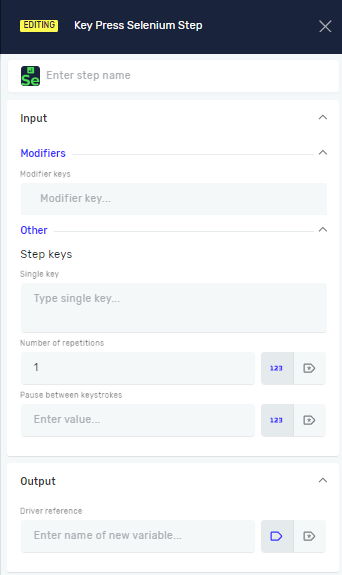
The Key Press Selenium Step lets you type a single keyboard key on a website. You can use it to send specific key presses, like "Enter" or "Escape," or to make hotkey combinations.
How to Use Key Press Selenium Step
Use this step to send keyboard input to a web page using your Selenium driver.
Step 1: Add the Key Press Selenium Step
- Drag and drop the Key Press Selenium Step into your process.
- Give the step a name in the Step Name field (this is optional, but helpful).
Step 2: Set Up Key Press Parameters
- Single key: Type the key you want to press. For example, "Enter," "Escape," or a letter.
- Modifier key (Optional): If you're making a hotkey, pick a modifier key (like "Ctrl," "Alt," "Shift") from the dropdown menu. Click Add modifier key to include it.
- Number of repetitions (Optional): Type how many times you want to press the key.
- Pause between keystrokes [ms] (Optional): Type a number in milliseconds to add a delay between repeated key presses.
Step 3: Pick the Driver
- Driver Reference: Type the name of the variable that holds your active Selenium driver. This tells the step which browser to use.
Parameters Explained
Step Name (Optional)
- A custom name for this step in your process.
- Example: "Press Enter Key"
- This helps make your process easier to understand.
Modifier key (Optional)
- A key like Ctrl, Alt, or Shift that you press with another key.
- Example: "Ctrl"
- Use this to make hotkey combinations.
Single key (Required)
- The main key you want to press.
- Example: "Enter", "A", "Escape"
- This is the main input for the step.
Number of repetitions (Optional)
- How many times the key should be pressed.
- Example: 3
- Use this when you need to press the same key multiple times.
Pause between keystrokes [ms] (Optional)
- The delay in milliseconds between each key press when you're repeating keys.
- Example: 100
- Use this to control how fast repeated key presses happen.
Driver Reference (Required)
- The variable name that stores your Selenium driver.
- Example:
myBrowserDriver - This connects the step to your open web browser.
Related Articles
Need Help?
Can't find what you're looking for? Join the Robotiq Community to get help from other users and the Robotiq team.