To Title Case Text Step
To Title Case Text Step - Robotiq.ai
The To Title Case Text step changes any text string into title case. This means the first letter of each main word becomes a capital, while smaller words stay lowercase. Use this step to make text formatting consistent in your automations.
How to Use the To Title Case Text Step
Add this step to your process to format text into title case.
Step 1: Add the To Title Case Text Step
- Drag and drop the To Title Case Text step into your process workflow.
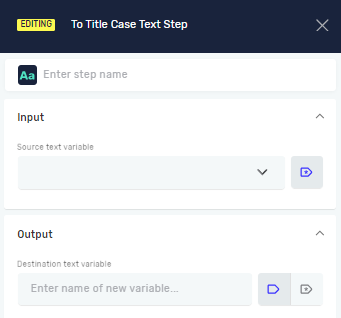
- (Optional) In the step's properties, type a custom name in the Step name field. This helps you find the step in your process.
Step 2: Set Up Input and Output
- In the Source text variable field, type the name of an existing text variable that holds the text you want to change.
- In the Destination Text variable field, type a name for the variable that will hold the title-cased text. You can use a variable that already exists or make a new one.
Example: If Source text variable has "this is an example sentence", the Destination Text variable will have "This Is an Example Sentence".
Parameters Explained
Step name (Optional)
- A custom name for the process step.
- This name shows up on the step box in the editor.
Source text variable (Required)
- The name of an existing text variable.
- This variable must contain the text you want to change to title case.
Destination Text variable (Required)
- The name of a text variable where the title-cased text will be saved.
- You can use a variable that already exists or create a new one here.
Related Articles
- Define Variable Step - Robotiq.ai Help Center: Learn how to set up new variables.
- Set Variable Value Step - Robotiq.ai Help Center: Learn how to change existing variables.
Need Help?
Can't find what you're looking for? Join the Robotiq Community to get help from other users and the Robotiq team.