If Step
The If Step runs different parts of your code based on a condition. If the condition is true, the "true" part runs. If it's false, the "false" part runs.
You use this step to add logic that depends on certain conditions to your automation processes.
How to Use the If Step
Add an If Step to your process to create paths that depend on conditions.
Step 1: Add the If Step
- Drag the If Step into your process workflow.
- Connect other steps to the "True" or "False" paths as needed.
Step 2: Set up the If Step
- Click on the If Step in your workflow.
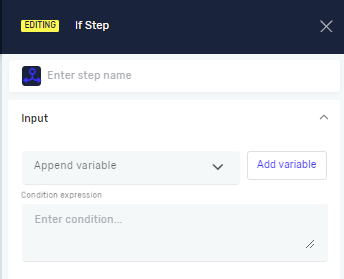
- Set the parameters in the properties panel.
Parameters Explained
Step name (Optional)
- A custom name for the step.
- This name shows up on the step box in the editor.
Append variable (Optional)
- Pick an existing variable from your process.
- The result of the condition can be saved in this variable.
Condition expression (Required)
- A true/false statement that the step checks.
- If the statement is true, the "true" path runs. If false, the "false" path runs.
- Example:
variableA > 10
Operators for Condition Expressions
You can use these operators in your condition expressions:
- < : Less than
- <= : Less than or equal to
- > : Greater than
- >= : Greater than or equal to
- == : Equals
Combining Multiple Conditions
Use these operators when you have more than one condition:
- && : AND (both conditions must be true)
- || : OR (at least one condition must be true)
Related Articles
- Else Step - Learn how to use the Else Step with an If Step.
- Else If Step - See how to add more conditions using the Else If Step.
- Define Variable Step - Learn how to make variables to use in conditions.
Need Help?
Can't find what you're looking for? Join the Robotiq Community to get help from other users and the Robotiq team.