Split Text Step
The Split Text Step takes one string and breaks it into several smaller strings. It makes an array of these smaller strings using a specific character or text you choose to divide them. You can use this step to pull out specific bits of information from a longer piece of text.
How to Use the Split Text Step
Use this step to turn a text string into a list of separate items.
Step 1: Add the Split Text Step
- Drag the Split Text Step into your process flow.
- Click on the step to set its options.
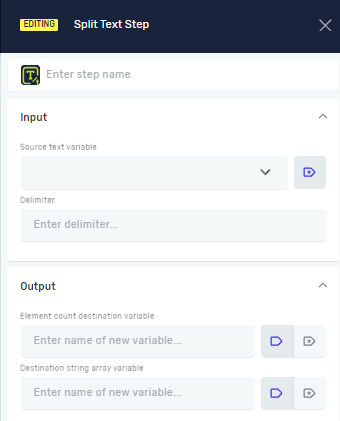
Step 2: Set Up Input Parameters
Source text variable (Required)
- This is the variable that already holds the text you want to split.
- Example: If you have a variable called
fullAddresswith "123 Main St, Anytown, USA" in it, this is your source text.
Delimiter (Required)
- This is the character or text that tells the step where to cut the source text.
- You can use an existing variable or type the value directly.
- Example: To split "123 Main St, Anytown, USA" by the comma, you would use
,as your delimiter.
Step 3: Set Up Output Parameters
Element count destination variable (Required)
- This is a new or existing number variable. It will hold the total number of items created in the resulting string array.
- Example: If "123 Main St, Anytown, USA" is split by
,, this variable would hold3.
Destination string array variable (Required)
- This is a new or existing variable that holds an "array of strings". It will hold the actual smaller strings after the split.
- Example: If "123 Main St, Anytown, USA" is split by
,, this variable would contain["123 Main St", " Anytown", " USA"].
Parameters Explained
Step name (Optional)
- A custom name for this step in your process. This helps you find it easily in the Process Editor.
Related Articles
- Set Variable Value Step - Learn how to define and update variables in your process.
- Create New List Step - Learn how to create new lists, which can be helpful when working with arrays.
- For Each Loop - Learn how to go through each item in the string array created by the Split Text Step.
Need Help?
Can't find what you're looking for? Join the Robotiq Community to get help from other users and the Robotiq team.