While Loop
The While Loop step runs a set of actions over and over. It keeps going as long as a specific condition is true. Use it for tasks that need to repeat until something changes.
How to Use the While Loop
Add a While Loop step to your process to repeat actions based on a condition.
Step 1: Add the While Loop Step
- Open your process in the Robotiq.ai Process Editor.
- Drag the "While Loop" step from the available steps into your process flow.
Step 2: Set up the While Loop
- Click on the While Loop step to open its properties.
- Set the options as described below.
- Put the actions you want to repeat inside the While Loop step.
Options Explained
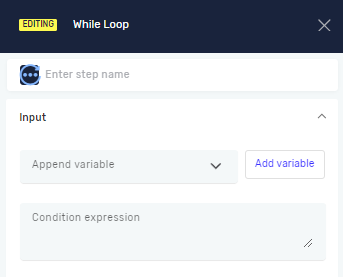
Step name (Optional)
- A custom name for the While Loop step.
- This name shows up in the Process Editor.
- Example:
Loop until counter reaches 10
Append variable (Optional)
- Pick an existing variable to hold the result of the loop's condition.
- This variable will be true or false, showing if the condition was met.
- Example: If you have a variable called
loopStatus, pick it here. - When to use it: Use this when you need to know what the loop's condition was after it finishes.
- You can make variables using the Define Variable Step.
Condition expression (Required)
- An expression that is either true or false, which decides if the loop keeps running.
- The loop runs as long as this expression is
true. - Example:
counter < 10(The loop keeps going as long as thecountervariable is less than 10). - When to use it: Always set a clear condition to stop the loop from running forever.
Related Articles
- If Step: Learn how to run code based on a condition just once.
- Do While Loop: Understand a loop that runs at least once before checking its condition.
- For Each Loop: Learn how to go through items in a list.
Need Help?
Can't find what you're looking for? Join the Robotiq Community to get help from other users and the Robotiq team.