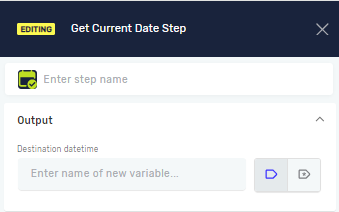
Get Current Date Step
The Get Current Date step gets the current date or the current date and time. It saves this information in a datetime variable for your automation process. You can use this step to put timestamps on events, figure out how long things take, or record when certain actions happen.
How to Use Get Current Date
Add this step to your process to grab the current date and time.
Step 1: Add the Get Current Date Step
- Open your process in the Process Editor.
- Drag and drop the "Get Current Date" step from the available steps onto your canvas.
Step 2: Configure the Step
- Click on the "Get Current Date" step to open its properties.
- (Optional) In the Step name field, give this step a custom name. This helps you find it in your process.
Step 3: Define the Output Variable
- In the Destination datetime field, type the name of a variable.
- This variable needs to be a
datetimedata type. - If the variable doesn't exist, Robotiq.ai will make it for you.
- The current date and time will be saved in this variable.
Example: You could name the variable currentTimestamp to save the exact moment the step runs.
Parameters Explained
Step name (Optional)
- A custom name for this step in your process.
- Example:
Log_Start_Time - Use this to make your process easier to understand.
Destination datetime (Required)
- The name of the variable where the current date and time will be saved.
- This variable must be a
datetimetype. - Example:
processStartTime - This variable will hold the step's output.
Related Articles
- Define Variable Step - Robotiq.ai
- Set Variable Value Step - Robotiq.ai
- Examples of use - Date and Time steps
Need Help?
Can't find what you're looking for? Join the Robotiq Community to get help from other users and the Robotiq team.