Hotkey Step
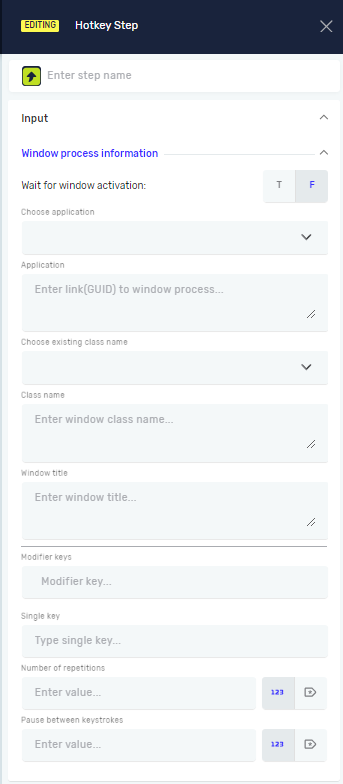
The Hotkey Step sends a keyboard shortcut to a specific program. You can use it to trigger built-in functions within a program, like saving a file or opening a new tab.
How to Use the Hotkey Step
Add a Hotkey Step to your process to send keyboard combinations.
Step 1: Add the Hotkey Step
- Drag and drop the Hotkey Step into your process workflow.
- Select the step to set its properties.
Step 2: Set Up Application Details
- In the Choose Application field, pick the running program you want to use.
- The Application field will automatically fill in with the program's name.
Important: You must have opened the program beforehand using a step like the Open Window Process Step.
Step 3: Set the Hotkey
- In the Modifier key field, pick the first key of your shortcut (e.g., Ctrl, Alt, Shift).
- In the Single key field, pick the second key of your shortcut (e.g., S for save, C for copy).
- You need to use either a Modifier key or a Single key, or both.
Parameters Explained
Step name (Optional)
- A custom name for the process step.
- This name shows up on the step box in the editor.
Wait for window activation (Required)
- This controls if the step waits for the program window to be active.
- T (True): The step waits until the program window is active.
- F (False): The step runs right away, even if the program isn't active. This is the default setting.
Choose Application (Required)
- The custom name of the program or process.
- This program must have been opened earlier in the process.
Application (Required)
- The technical name of the program.
- This field automatically fills in after you pick a program in Choose Application.
Choose existing class name (Optional)
- Pick an existing unique name for the program window element.
Class name (Optional)
- The unique name of the program window element.
Window title (Optional)
- The visible title of the program window.
Modifier key (Required if Single key not in use)
- The main key for the hotkey combination.
- Example:
Ctrl,Alt,Shift.
Single key (Required if Modifier key not in use)
- The second key for the hotkey combination.
- Example:
S,C,V.
Number of repetitions (Optional)
- How many times the hotkey combination should be sent.
Pause between keystrokes[ms] (Optional)
- The delay in milliseconds between each time the hotkey is sent.
- Enter a whole number.
Related Articles
- Key Input Step - Learn how to make the system type individual keys.
- Open Window Process Step - Learn how to open programs for automation.
Need Help?
Can't find what you're looking for? Join the Robotiq Community to get help from other users and the Robotiq team.