Rename Folder Step
The Rename Folder step changes a folder's name. You use it in your automation processes to organize files and directories.
How to Use the Rename Folder Step
Add this step to your process when you need to change a folder's name.
Step 1: Add the Rename Folder Step
- Open your process in the Robotiq.ai Process Editor.
- Drag and drop the Rename Folder step into your workflow.
Step 2: Set Up Folder Details
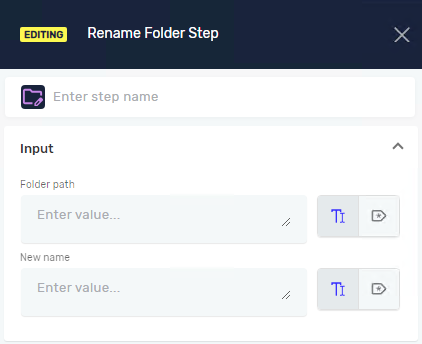
- Click on the Rename Folder step to open its properties.
- In the Input Parameters section, fill in the following:
- Folder path: Type the full path to the folder you want to rename. You can use a direct value or a variable.
- New name: Type the new name for the folder. You can use a direct text value or a text variable.
Parameters Explained
Step Name (Optional)
- A custom name for this step in your process.
- Example: "Rename Temp Folder"
- Use this to make your process steps easier to find.
Folder path (Required)
- The full path to the folder you want to rename.
- Example:
C:\Users\YourUser\Documents\OldFolderName - This can be a fixed value or a variable that holds the folder path.
New name (Required)
- The new name you want to give the folder.
- Example:
NewFolderName - This can be a fixed text or a text variable.
Related Articles
Need Help?
Can't find what you're looking for? Join the Robotiq Community to get help from other users and the Robotiq team.