Execute Function Step
The Execute Function Step runs functions you've already set up in your automation. It helps you reuse code and keep your processes tidy. This step is for anyone who builds or manages Robotiq.ai automation.
How to Use the Execute Function Step
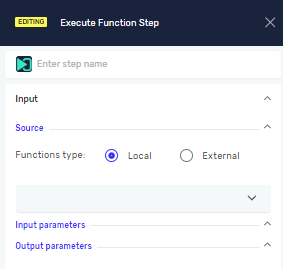
This step lets you pick and run a function you've already made.
Step 1: Add the Execute Function Step
- Drag the Execute Function Step into your workflow.
Step 2: Set Up the Function Source
- In the step's settings, find the Source field.
- Pick either Local or External Function.
- Local Function: This is a function made inside your current project.
- External Function: This is a function made outside your current project, often in a shared collection.
- Once you pick the source, you'll see a list of available functions.
- Choose the function you want to run.
Important: The settings you see next will change based on the function you pick.
Parameters Explained
Step name (Optional)
- This is a name you can give to this step.
- It helps you find the step in the editor.
- Example:
CalculateTotal
Source (Required)
- This tells the system where the function is located.
- Choices:
LocalorExternal Function. - Use
Localfor functions you made in your current project. UseExternal Functionfor functions from other projects or libraries.
Related Articles
- Functions: Learn how to create and manage functions.
- Define Function: Find out how to set up parameters for local functions.
Need Help?
If you can't find what you're looking for, join the Robotiq Community to get help from other users and the Robotiq team.